> ## Documentation Index
> Fetch the complete documentation index at: https://docs.withrealm.com/llms.txt
> Use this file to discover all available pages before exploring further.
# API keys
> Integrate Realm into your workflows with the REST API
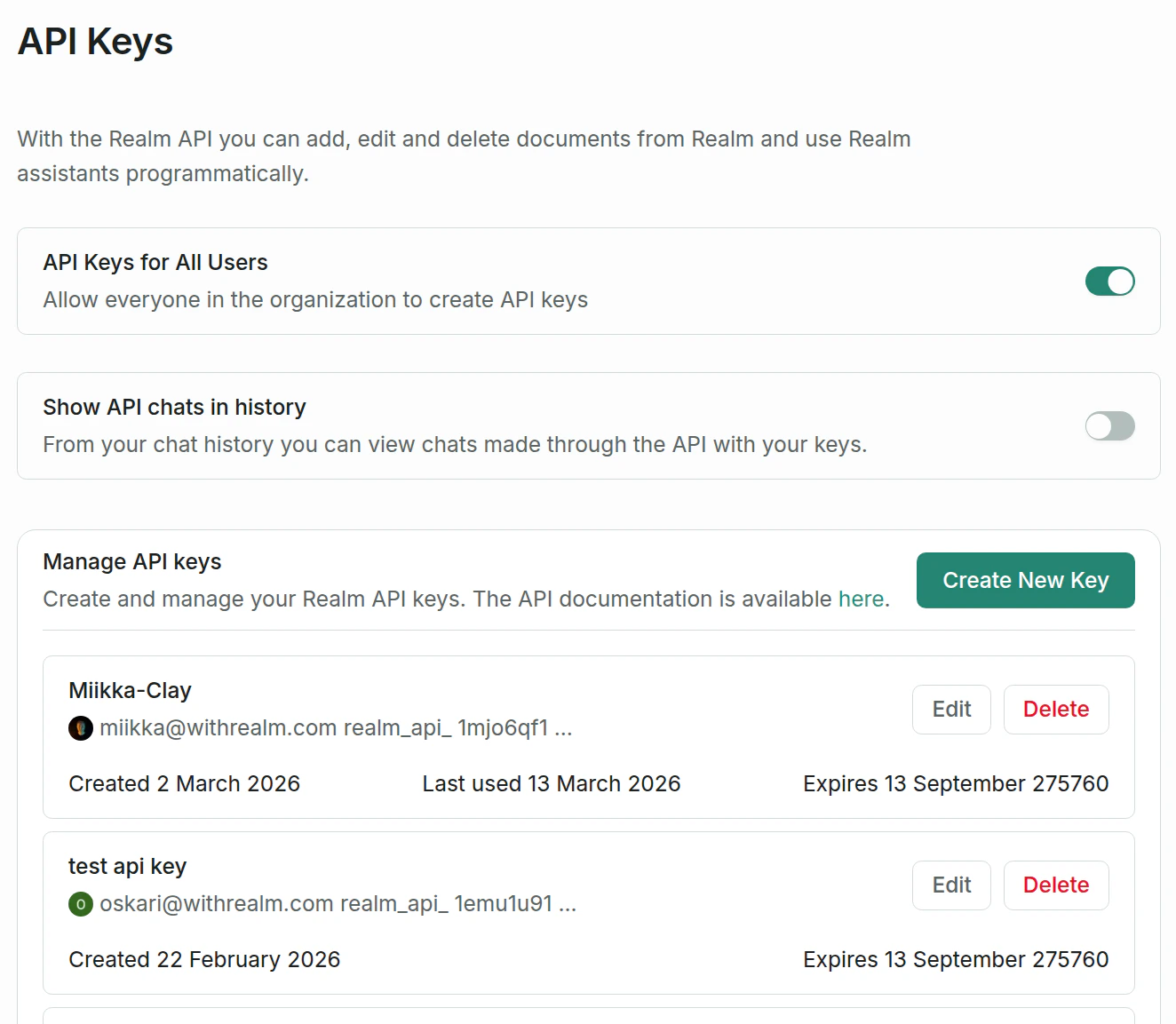
The Realm API lets you use Realm assistants programmatically and manage documents from your own applications. Navigate to **Settings** > **API Keys** to create and manage your keys.
 API keys are not available on trial plans.
## Creating a Key
Click **Create New Key** to open the creation dialog.
API keys are not available on trial plans.
## Creating a Key
Click **Create New Key** to open the creation dialog.
 ### Name and expiration
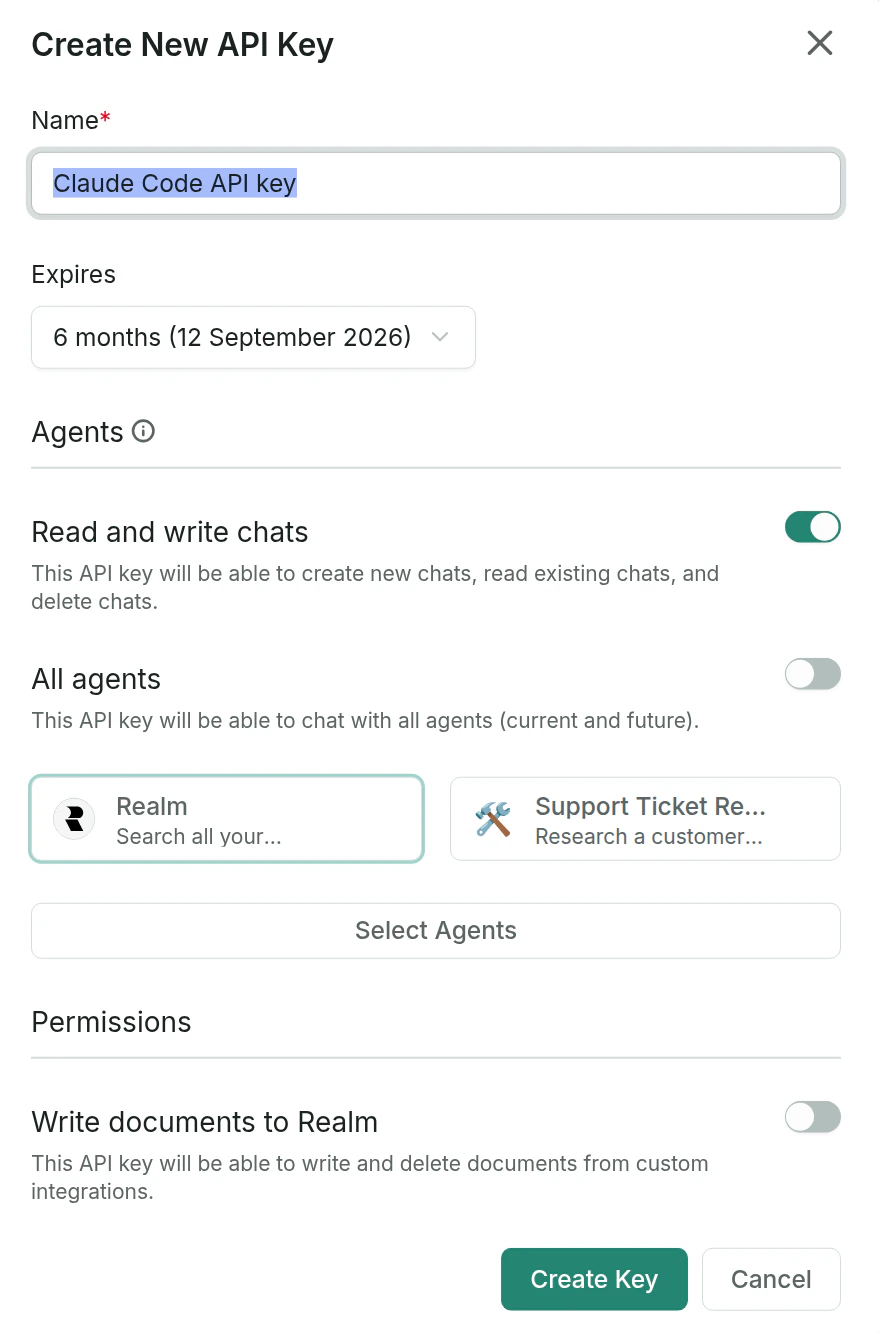
Give the key a descriptive name (e.g. "CRM Integration" or "Claude Code API key"). Choose an expiration from the dropdown, or select "Never" if the key should not expire.
### Agents
Control what the API key can do with agents and which agents it has access to.
| Setting | Description |
| ------------------------ | ------------------------------------------------------------------------------------------- |
| **Read and write chats** | The key can create new chats, read existing chats, and delete chats |
| **All agents** | The key can chat with all agents, including any created in the future |
| **Select Agents** | Pick specific agents the key has access to. Only selected agents can be used with this key. |
### Documents
| Setting | Description |
| ---------------------------- | --------------------------------------------------------------- |
| **Write documents to Realm** | The key can write and delete documents from custom integrations |
### Save your key
After clicking **Create Key**, the key is shown once in a dialog. Copy it immediately and store it in a safe place. You will not be able to view it again. If you lose it, you will need to create a new key.
## Managing keys
Each key shows its name, token prefix (for identification), created date, last used date, and expiration status. Expired or soon-to-expire keys are highlighted.
For each key, you can:
* **Edit** — update the name, agent access, permissions, or expiration
* **Regenerate** — create a new token value while keeping the same configuration. Applications using the old key will need to be updated.
* **Delete** — permanently revoke the key
## Settings
**API Keys for All Users** — By default, only admins can create API keys. Toggle this on to allow all users in your organization to create their own keys.
**Show API chats in history** — When enabled, conversations initiated through the API appear in your chat history.
## Using the API
All API requests require a Bearer token in the `Authorization` header:
```bash theme={null}
curl -X POST https://app.withrealm.com/api/v1/chat \
-H "Authorization: Bearer realm_api_..." \
-H "Content-Type: application/json" \
-d '{"message": "What are our open support tickets?"}'
```
For the full list of endpoints, usage details, and rate limits, see the [API Reference](/api-reference/introduction).
### Name and expiration
Give the key a descriptive name (e.g. "CRM Integration" or "Claude Code API key"). Choose an expiration from the dropdown, or select "Never" if the key should not expire.
### Agents
Control what the API key can do with agents and which agents it has access to.
| Setting | Description |
| ------------------------ | ------------------------------------------------------------------------------------------- |
| **Read and write chats** | The key can create new chats, read existing chats, and delete chats |
| **All agents** | The key can chat with all agents, including any created in the future |
| **Select Agents** | Pick specific agents the key has access to. Only selected agents can be used with this key. |
### Documents
| Setting | Description |
| ---------------------------- | --------------------------------------------------------------- |
| **Write documents to Realm** | The key can write and delete documents from custom integrations |
### Save your key
After clicking **Create Key**, the key is shown once in a dialog. Copy it immediately and store it in a safe place. You will not be able to view it again. If you lose it, you will need to create a new key.
## Managing keys
Each key shows its name, token prefix (for identification), created date, last used date, and expiration status. Expired or soon-to-expire keys are highlighted.
For each key, you can:
* **Edit** — update the name, agent access, permissions, or expiration
* **Regenerate** — create a new token value while keeping the same configuration. Applications using the old key will need to be updated.
* **Delete** — permanently revoke the key
## Settings
**API Keys for All Users** — By default, only admins can create API keys. Toggle this on to allow all users in your organization to create their own keys.
**Show API chats in history** — When enabled, conversations initiated through the API appear in your chat history.
## Using the API
All API requests require a Bearer token in the `Authorization` header:
```bash theme={null}
curl -X POST https://app.withrealm.com/api/v1/chat \
-H "Authorization: Bearer realm_api_..." \
-H "Content-Type: application/json" \
-d '{"message": "What are our open support tickets?"}'
```
For the full list of endpoints, usage details, and rate limits, see the [API Reference](/api-reference/introduction).