> ## Documentation Index
> Fetch the complete documentation index at: https://docs.withrealm.com/llms.txt
> Use this file to discover all available pages before exploring further.
# Coda
> Connect Coda to sync docs and tables
Connect Coda to Realm to make documents, pages, and tables searchable. Navigate to **Settings** > **Data sources** and click **Connect** on Coda, or click **Reconnect** if already connected.
## Connecting Coda
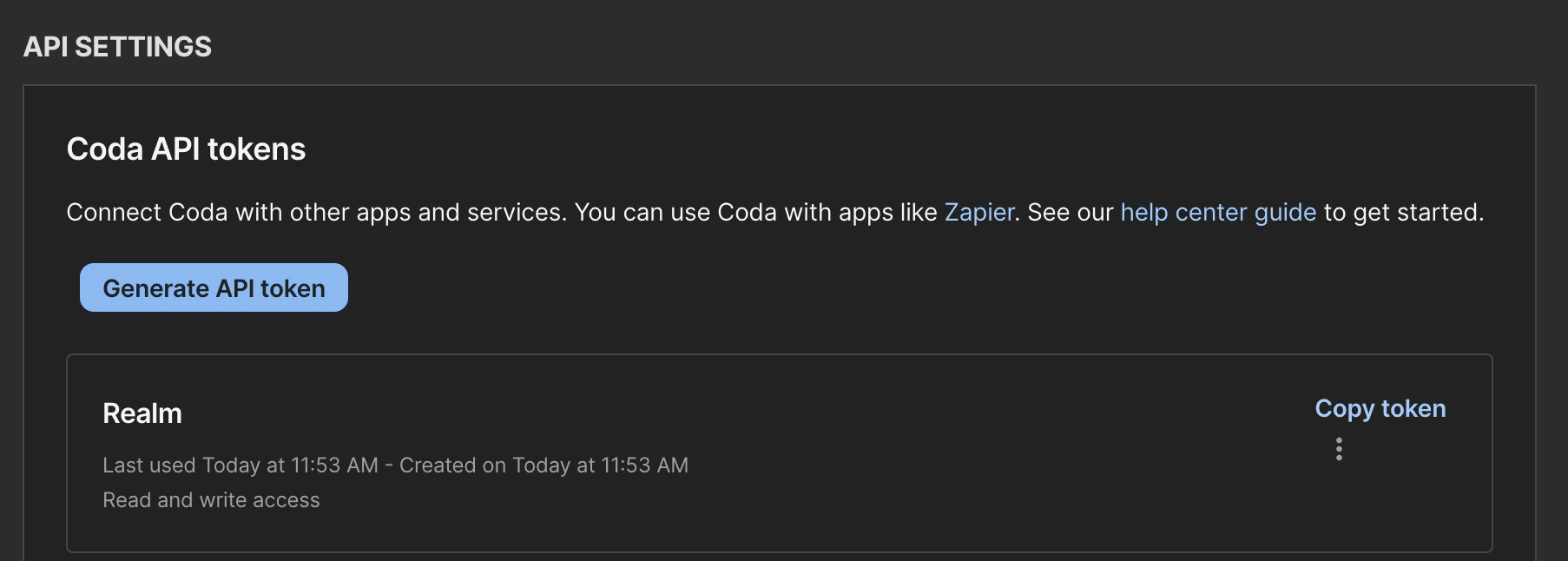
Connect Coda using an API key. On the data source page, enter your Coda API token.
To create an API token, go to [coda.io/account#apiSettings](https://coda.io/account#apiSettings) and generate a new token. The person connecting must have the **Org admin** role in Coda.
 The Coda API for reading users and permissions is only available on **Enterprise** plans.
## What gets synced
| Content | Synced |
| --------------------------------------- | ------ |
| Documents and all child pages | Yes |
| Page content (text and embedded tables) | Yes |
| Comments | No |
## Selecting documents
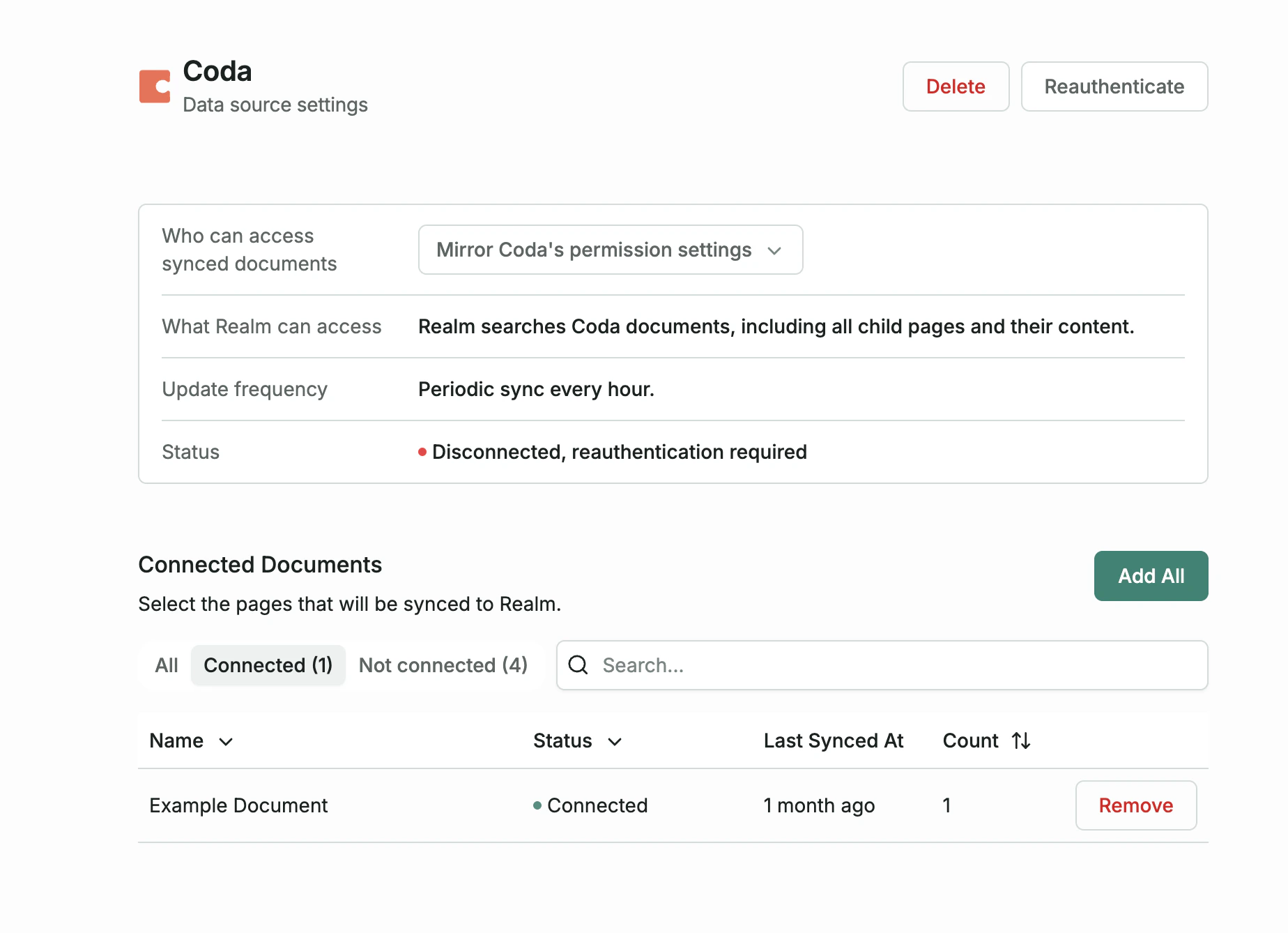
After connecting, choose which Coda documents to sync. You can add or remove documents at any time from the data source page.
The Coda API for reading users and permissions is only available on **Enterprise** plans.
## What gets synced
| Content | Synced |
| --------------------------------------- | ------ |
| Documents and all child pages | Yes |
| Page content (text and embedded tables) | Yes |
| Comments | No |
## Selecting documents
After connecting, choose which Coda documents to sync. You can add or remove documents at any time from the data source page.
 ## Permissions
Realm enforces Coda's native permission model. Users can only see documents they have access to in Coda.
You can override this by switching to "Everyone in this organization" on the data source settings page, which makes all synced Coda data visible to all Realm users.
## Permissions
Realm enforces Coda's native permission model. Users can only see documents they have access to in Coda.
You can override this by switching to "Everyone in this organization" on the data source settings page, which makes all synced Coda data visible to all Realm users.