> ## Documentation Index
> Fetch the complete documentation index at: https://docs.withrealm.com/llms.txt
> Use this file to discover all available pages before exploring further.
# Confluence
> Connect Confluence to sync pages and content
Connect Confluence to Realm to make wiki pages, blogs, and embedded files searchable. Navigate to **Settings** > **Data sources** and click **Connect** on Confluence, or click **Reconnect** if already connected. Follow the on-screen instructions to install the Realm app on your Confluence site.
## Connecting Confluence (Cloud)
Install the [Realm app from Atlassian Marketplace](https://marketplace.atlassian.com/apps/1233308/realm?tab=overview\&hosting=cloud) on the Confluence site you want to connect.
Then, navigate to [Atlassian Admin](https://admin.atlassian.com/) > **Apps** > **Sites** > **Your Site Name**.
Then click **Connected Apps**, find the Realm app, click the three dots, and click **Configure**.
You should then see the following page:
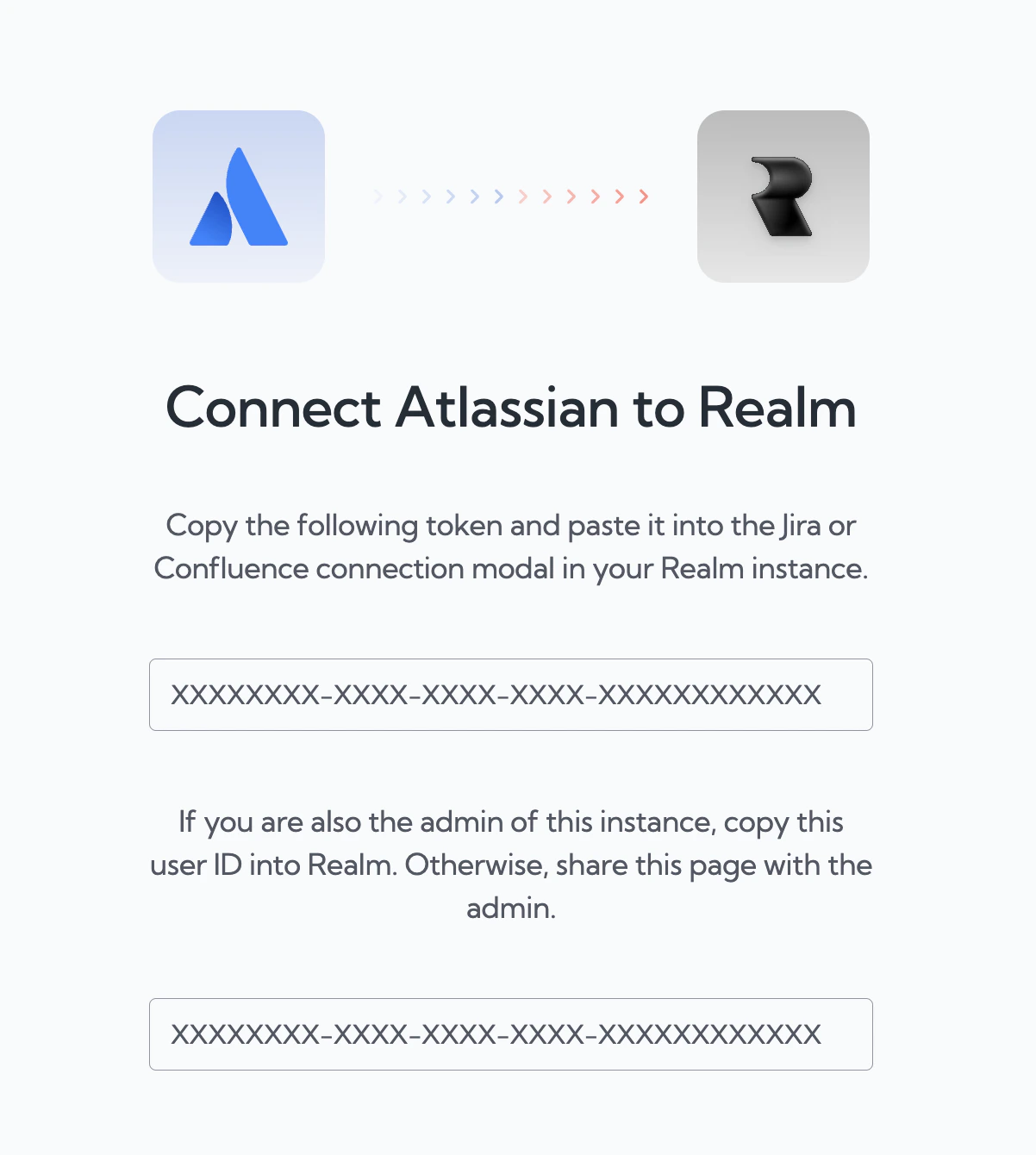 The person connecting should have access to the Confluence spaces you want to sync.
Depending on your organization's Atlassian settings, an admin may need to approve the app installation before it can be used.
## What gets synced
| Content | Synced |
| ---------------------------- | ------ |
| Pages | Yes |
| Blogs | Yes |
| Attached files (up to 10 MB) | Yes |
| Comments | Yes |
## Selecting spaces
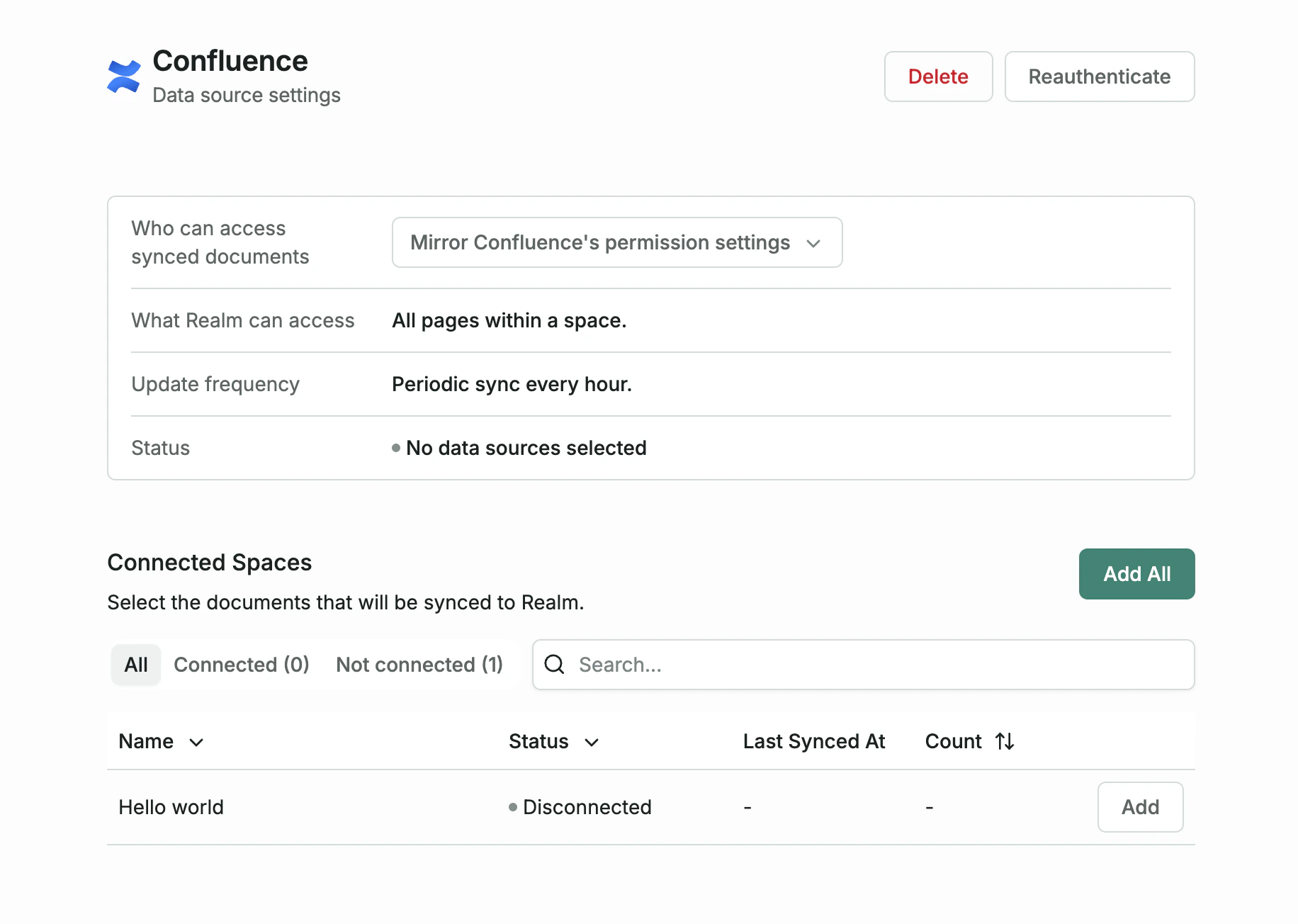
After connecting, choose which Confluence spaces to sync. You can add or remove spaces at any time from the data source page.
The person connecting should have access to the Confluence spaces you want to sync.
Depending on your organization's Atlassian settings, an admin may need to approve the app installation before it can be used.
## What gets synced
| Content | Synced |
| ---------------------------- | ------ |
| Pages | Yes |
| Blogs | Yes |
| Attached files (up to 10 MB) | Yes |
| Comments | Yes |
## Selecting spaces
After connecting, choose which Confluence spaces to sync. You can add or remove spaces at any time from the data source page.
 ## Permissions
Realm enforces Confluence's native permission model. Users can only see content they have access to in Confluence.
You can override this by switching to "Everyone in this organization" on the data source settings page, which makes all synced Confluence data visible to all Realm users.
## Smart features
Realm integrates with Confluence's content lifecycle:
| Confluence Feature | Realm Behavior |
| ------------------ | ------------------------- |
| Verified pages | Auto-verified in Realm |
| Archived pages | Auto-hidden in Realm |
| Draft pages | Not shown until published |
## Confluence Data Center
For Confluence Data Center (self-hosted), connect using a Personal Access Token instead of the Marketplace app.
1. Follow [Atlassian's instructions](https://confluence.atlassian.com/enterprise/using-personal-access-tokens-1026032365.html) to create a PAT. Disable "Automatic expiry" to prevent sync interruptions.
2. Enter the token and your Confluence instance URL on the data source page in Realm.
3. Select the spaces you want to sync.
## Configuring properties
You can configure which Confluence properties are synced from the data source page. This lets you control which metadata fields are included alongside page content.
## Permissions
Realm enforces Confluence's native permission model. Users can only see content they have access to in Confluence.
You can override this by switching to "Everyone in this organization" on the data source settings page, which makes all synced Confluence data visible to all Realm users.
## Smart features
Realm integrates with Confluence's content lifecycle:
| Confluence Feature | Realm Behavior |
| ------------------ | ------------------------- |
| Verified pages | Auto-verified in Realm |
| Archived pages | Auto-hidden in Realm |
| Draft pages | Not shown until published |
## Confluence Data Center
For Confluence Data Center (self-hosted), connect using a Personal Access Token instead of the Marketplace app.
1. Follow [Atlassian's instructions](https://confluence.atlassian.com/enterprise/using-personal-access-tokens-1026032365.html) to create a PAT. Disable "Automatic expiry" to prevent sync interruptions.
2. Enter the token and your Confluence instance URL on the data source page in Realm.
3. Select the spaces you want to sync.
## Configuring properties
You can configure which Confluence properties are synced from the data source page. This lets you control which metadata fields are included alongside page content.