> ## Documentation Index
> Fetch the complete documentation index at: https://docs.withrealm.com/llms.txt
> Use this file to discover all available pages before exploring further.
# Google Drive
> Connect Google Drive to sync documents and files
Connect Google Drive to Realm to make documents, spreadsheets, presentations, and other files searchable. Navigate to **Settings** > **Data sources** and click **Connect** on Google Drive, or click **Reconnect** if already connected.
## Connecting Google Drive
Click **Connect** on the Google Drive data source page. You'll be redirected to Google's OAuth consent screen. Review the permissions and click **Allow**. The person connecting should be a Google Workspace admin or have access to the Shared Drives you want to sync.
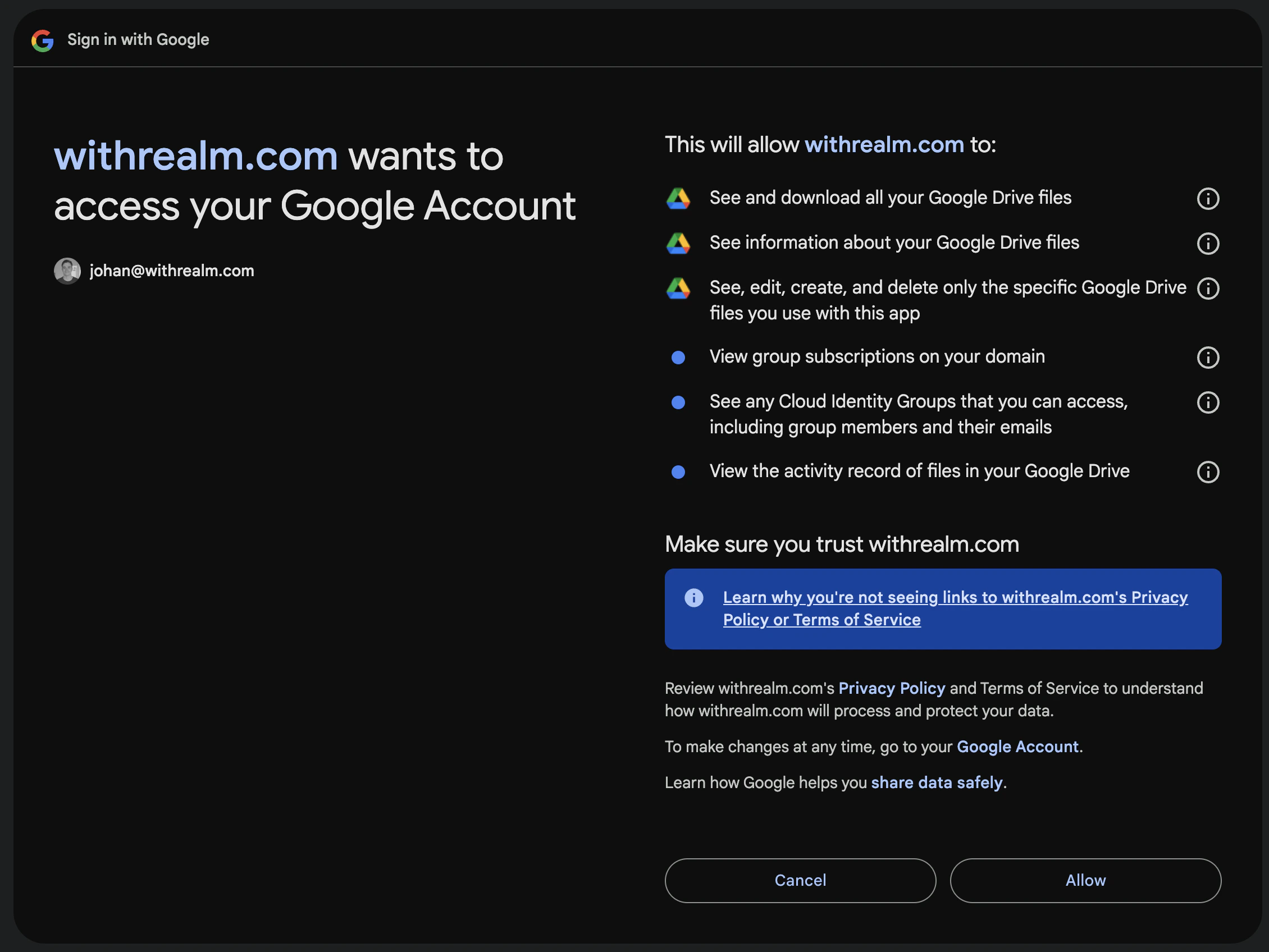 Once authorized, you'll be redirected back to Realm to select which drives to sync.
## What gets synced
| Content | Synced |
| ----------------------------------------------------- | ------ |
| Google Docs | Yes |
| Google Sheets (cell values, up to 5,000 rows per tab) | Yes |
| Google Slides (including speaker notes) | Yes |
| PDFs | Yes |
| Microsoft Office files (.docx, .pptx, .xlsx) | Yes |
| Plain text and VTT subtitle files | Yes |
| Google Forms | No |
| Google Sites | No |
| Images, videos, and folders | No |
| Comments and suggestions on files | No |
## Selecting drives
After connecting, choose which Shared Drives to sync from the list of available drives. You can add or remove drives at any time from the data source page.
### Personal drives
In addition to admin-configured Shared Drives, individual users can connect their own Google Drive from **Settings** > **Preferences** > **Personal Drives**. Files synced this way respect Google Drive's native permissions, so other users who already had access to the same files will also see them in Realm.
## Reconnecting expired access
If Google revokes access or the OAuth refresh token expires, Realm stops the affected sync. For a Shared Drive connection, Realm marks the data source as disconnected and notifies organization admins. For a personal Drive, Realm disables that personal source and notifies its owner. Reconnect the affected Google Drive in Realm to authorize access again.
## Permissions
Realm enforces Google Drive's native permission model. Users can only see files they have access to in Google Drive.
You can override this by switching to "Everyone in this organization" on the data source settings page, which makes all synced Google Drive data visible to all Realm users.
## Restricting API access
Realm only syncs the Shared Drives you select. To further limit the Google account that Realm can read from, connect with a dedicated Google Workspace user that only has access to the content you want to index.
In the [Google Admin console](https://admin.google.com/), go to **Directory** > **Users** and click **Add new user**. Create an account with a license that includes Google Drive, such as `realm@your-domain.com` or `realm-google-drive@your-domain.com`.
In Google Drive, open the Shared Drive that contains the content Realm should index. Select the file or folder, click **Share**, add the dedicated user, and give it **Viewer** access. Keep **General access** set to **Restricted** unless your organization intentionally uses broader access. Realm will only be able to index files and folders that this dedicated user can open.
To sync a whole Shared Drive instead, add the dedicated user as a member of that Shared Drive.
Sign in to Google as the dedicated user, then return to Realm and connect Google Drive from **Settings** > **Data sources** > **Google Drive**.
After authorizing Realm, select only the Shared Drives you want to sync. If you later remove the dedicated user's access in Google Drive, Realm will stop being able to read that content on future syncs.
In Google Drive, confirm the dedicated user can open only the files and Shared Drives you expect Realm to index. In Realm, run or wait for the sync, then check that searchable Google Drive results match that scope.
Once authorized, you'll be redirected back to Realm to select which drives to sync.
## What gets synced
| Content | Synced |
| ----------------------------------------------------- | ------ |
| Google Docs | Yes |
| Google Sheets (cell values, up to 5,000 rows per tab) | Yes |
| Google Slides (including speaker notes) | Yes |
| PDFs | Yes |
| Microsoft Office files (.docx, .pptx, .xlsx) | Yes |
| Plain text and VTT subtitle files | Yes |
| Google Forms | No |
| Google Sites | No |
| Images, videos, and folders | No |
| Comments and suggestions on files | No |
## Selecting drives
After connecting, choose which Shared Drives to sync from the list of available drives. You can add or remove drives at any time from the data source page.
### Personal drives
In addition to admin-configured Shared Drives, individual users can connect their own Google Drive from **Settings** > **Preferences** > **Personal Drives**. Files synced this way respect Google Drive's native permissions, so other users who already had access to the same files will also see them in Realm.
## Reconnecting expired access
If Google revokes access or the OAuth refresh token expires, Realm stops the affected sync. For a Shared Drive connection, Realm marks the data source as disconnected and notifies organization admins. For a personal Drive, Realm disables that personal source and notifies its owner. Reconnect the affected Google Drive in Realm to authorize access again.
## Permissions
Realm enforces Google Drive's native permission model. Users can only see files they have access to in Google Drive.
You can override this by switching to "Everyone in this organization" on the data source settings page, which makes all synced Google Drive data visible to all Realm users.
## Restricting API access
Realm only syncs the Shared Drives you select. To further limit the Google account that Realm can read from, connect with a dedicated Google Workspace user that only has access to the content you want to index.
In the [Google Admin console](https://admin.google.com/), go to **Directory** > **Users** and click **Add new user**. Create an account with a license that includes Google Drive, such as `realm@your-domain.com` or `realm-google-drive@your-domain.com`.
In Google Drive, open the Shared Drive that contains the content Realm should index. Select the file or folder, click **Share**, add the dedicated user, and give it **Viewer** access. Keep **General access** set to **Restricted** unless your organization intentionally uses broader access. Realm will only be able to index files and folders that this dedicated user can open.
To sync a whole Shared Drive instead, add the dedicated user as a member of that Shared Drive.
Sign in to Google as the dedicated user, then return to Realm and connect Google Drive from **Settings** > **Data sources** > **Google Drive**.
After authorizing Realm, select only the Shared Drives you want to sync. If you later remove the dedicated user's access in Google Drive, Realm will stop being able to read that content on future syncs.
In Google Drive, confirm the dedicated user can open only the files and Shared Drives you expect Realm to index. In Realm, run or wait for the sync, then check that searchable Google Drive results match that scope.