> ## Documentation Index
> Fetch the complete documentation index at: https://docs.withrealm.com/llms.txt
> Use this file to discover all available pages before exploring further.
# HubSpot
> Connect HubSpot to sync CRM data and content
Connect HubSpot to Realm to make CRM data, activities, and related content searchable. Navigate to **Settings** > **Data sources** and click **Connect** on HubSpot, or click **Reconnect** if already connected.
## Connecting HubSpot
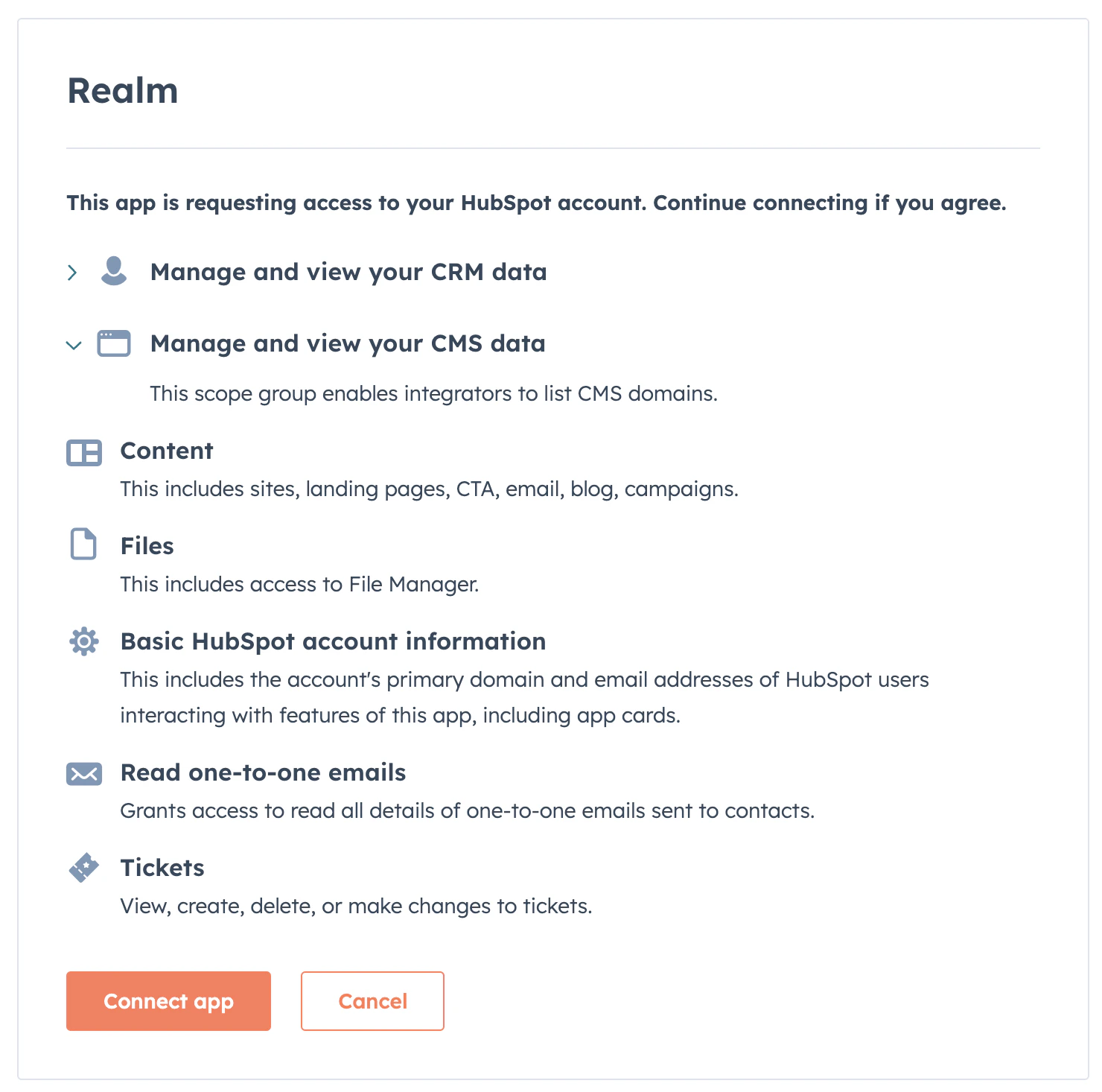
Click **Connect** on the HubSpot data source page. You'll be redirected to HubSpot's OAuth flow. Log in and click **Connect app** to allow access. The person connecting should be a HubSpot admin.
 ## What gets synced
Realm syncs the following HubSpot objects. You can enable or disable each object, and configure which properties are synced per object, from the data source page. Companies, Contacts, Deals, and Tickets appear as standalone search results, while activities are threaded onto them.
| Content | Synced |
| ----------------------------------------------------------------------------------------------------- | ------------ |
| CRM objects (Companies, Contacts, Deals, Tickets) | Configurable |
| Activities (Calls, Communications, Emails, Line items, Meetings, Notes, Quotes, Subscriptions, Tasks) | Configurable |
| File attachments on CRM records | Yes |
| Marketing data (campaigns) | No |
| Commerce data (invoices) | No |
| Reporting data (dashboards) | No |
## Configuring properties
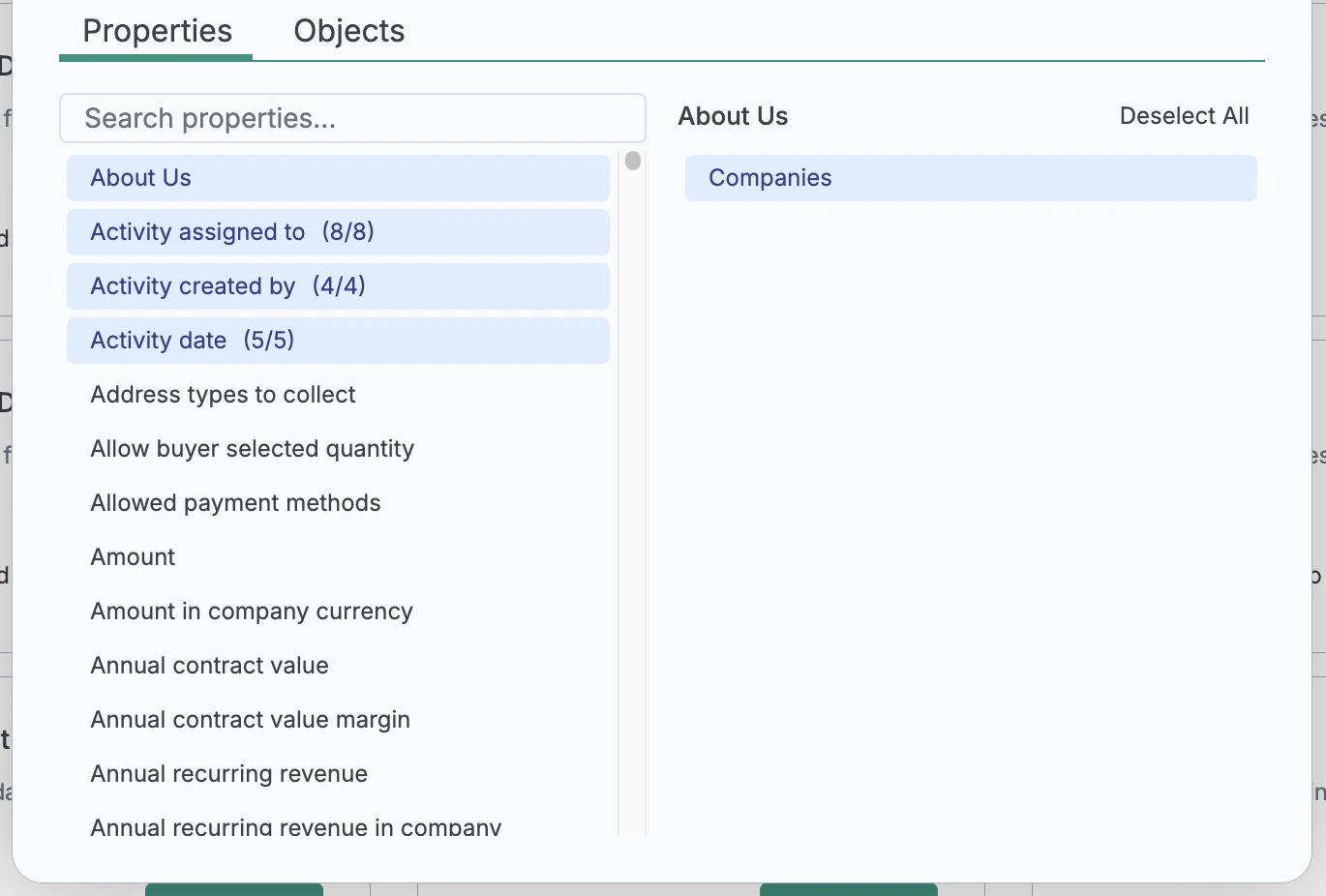
For each object, you can choose which properties (fields) are synced. Focus on properties that contain useful searchable content.
## What gets synced
Realm syncs the following HubSpot objects. You can enable or disable each object, and configure which properties are synced per object, from the data source page. Companies, Contacts, Deals, and Tickets appear as standalone search results, while activities are threaded onto them.
| Content | Synced |
| ----------------------------------------------------------------------------------------------------- | ------------ |
| CRM objects (Companies, Contacts, Deals, Tickets) | Configurable |
| Activities (Calls, Communications, Emails, Line items, Meetings, Notes, Quotes, Subscriptions, Tasks) | Configurable |
| File attachments on CRM records | Yes |
| Marketing data (campaigns) | No |
| Commerce data (invoices) | No |
| Reporting data (dashboards) | No |
## Configuring properties
For each object, you can choose which properties (fields) are synced. Focus on properties that contain useful searchable content.
 ## Permissions
All synced HubSpot data is searchable for users with a HubSpot account in your organization.
You can override this by switching to "Everyone in this organization" on the data source settings page, which makes all synced HubSpot data visible to all Realm users.
## Permissions
All synced HubSpot data is searchable for users with a HubSpot account in your organization.
You can override this by switching to "Everyone in this organization" on the data source settings page, which makes all synced HubSpot data visible to all Realm users.