> ## Documentation Index
> Fetch the complete documentation index at: https://docs.withrealm.com/llms.txt
> Use this file to discover all available pages before exploring further.
# Jira
> Connect Jira to sync issues and projects
Connect Jira to Realm to make issues, comments, and project data searchable. Navigate to **Settings** > **Data sources** and click **Connect** on Jira, or click **Reconnect** if already connected. Follow the on-screen instructions to install the Realm app on your Jira site.
## Connecting Jira
Install the [Realm app from Atlassian Marketplace](https://marketplace.atlassian.com/apps/1233308/realm?tab=overview\&hosting=cloud) on the Jira site you want to connect.
Then, navigate to [Atlassian Admin](https://admin.atlassian.com/) > **Apps** > **Sites** > **Your Site Name**.
Then click **Connected Apps**, find the Realm app, click the three dots, and click **Configure**.
You should then see the following page:
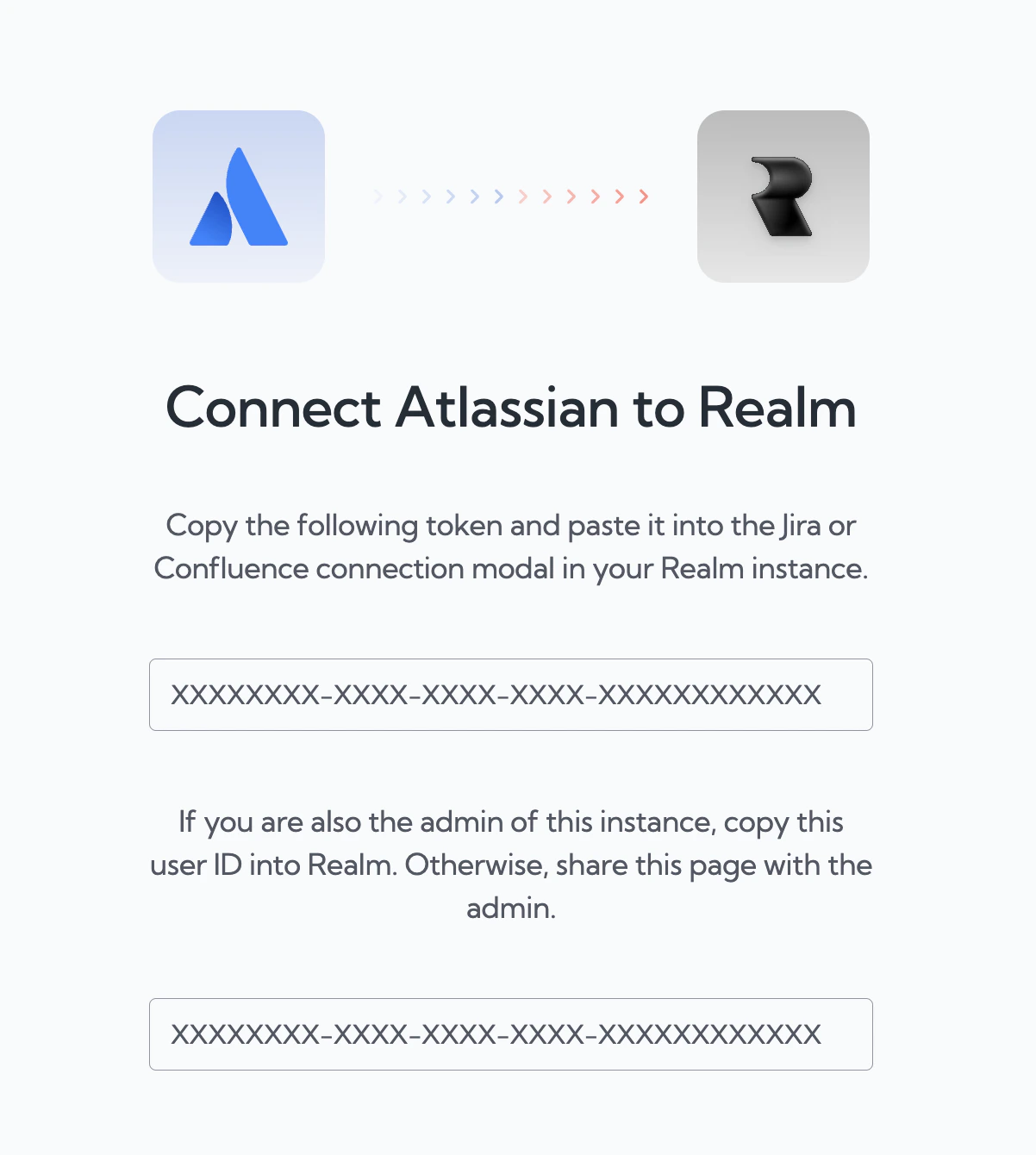 The person connecting should have access to the Jira projects you want to sync.
Depending on your organization's Atlassian settings, an admin may need to approve the app installation before it can be used.
## What gets synced
| Content | Synced |
| ------------------------------------------------- | ------------ |
| Issues (all types, including epics and sub-tasks) | Yes |
| Issue comments | Yes |
| Attached screenshots (OCR) | Yes |
| Custom fields | Configurable |
## Selecting projects
After connecting, choose which Jira projects to sync. You can add or remove projects at any time from the data source page.
## Permissions
Realm enforces Jira's native permission model. Users can only see issues they have access to in Jira.
You can override this by switching to "Everyone in this organization" on the data source settings page, which makes all synced Jira data visible to all Realm users.
## Jira Service Management
Realm's Jira data source also syncs **Jira Service Management** data. Service Management projects appear in the project list alongside standard Jira projects.
## Configuring properties
You can configure which Jira properties are synced from the data source page. This lets you control which issue fields are included alongside issue content.
The person connecting should have access to the Jira projects you want to sync.
Depending on your organization's Atlassian settings, an admin may need to approve the app installation before it can be used.
## What gets synced
| Content | Synced |
| ------------------------------------------------- | ------------ |
| Issues (all types, including epics and sub-tasks) | Yes |
| Issue comments | Yes |
| Attached screenshots (OCR) | Yes |
| Custom fields | Configurable |
## Selecting projects
After connecting, choose which Jira projects to sync. You can add or remove projects at any time from the data source page.
## Permissions
Realm enforces Jira's native permission model. Users can only see issues they have access to in Jira.
You can override this by switching to "Everyone in this organization" on the data source settings page, which makes all synced Jira data visible to all Realm users.
## Jira Service Management
Realm's Jira data source also syncs **Jira Service Management** data. Service Management projects appear in the project list alongside standard Jira projects.
## Configuring properties
You can configure which Jira properties are synced from the data source page. This lets you control which issue fields are included alongside issue content.