> ## Documentation Index
> Fetch the complete documentation index at: https://docs.withrealm.com/llms.txt
> Use this file to discover all available pages before exploring further.
# Salesforce
> Connect Salesforce to sync CRM data
Connect Salesforce to Realm to make cases, opportunities, knowledge articles, and other CRM data searchable. Navigate to **Settings** > **Data sources** and click **Connect** on Salesforce, or click **Reconnect** if already connected.
## Connecting Salesforce
Click **Connect** on the Salesforce data source page. You'll be redirected to Salesforce's OAuth flow. Log in and allow access. The person connecting should be a Salesforce admin with full read access to the objects you want to sync (e.g. Account, Opportunity, Contact, Contract, Order, Case, Campaign, Lead, Product).
## What gets synced
| Content | Synced |
| --------------------------------------------------------------------------------------------------------------------------------- | --------------------------- |
| Standard objects (Accounts, Opportunities, Contacts, Cases, Leads, Campaigns, Contracts, Orders, Products) | Configurable |
| Additional standard objects (managed content variants, assets, entitlements, service contracts, price books, reports, dashboards) | Configurable when available |
| Custom objects | Configurable |
| Knowledge articles | Yes |
| Notes | Yes |
| Activities (tasks and events) | Yes |
| Email messages | Yes |
| File attachments (ContentDocuments) | Yes |
Text extracted from image attachments (for example screenshots on cases) is also embedded into the parent case, so it is available when the case is used in search, chat, or agent runs. Other attached files are listed on the case by name.
## Configuring objects and fields
From the data source page, you can configure:
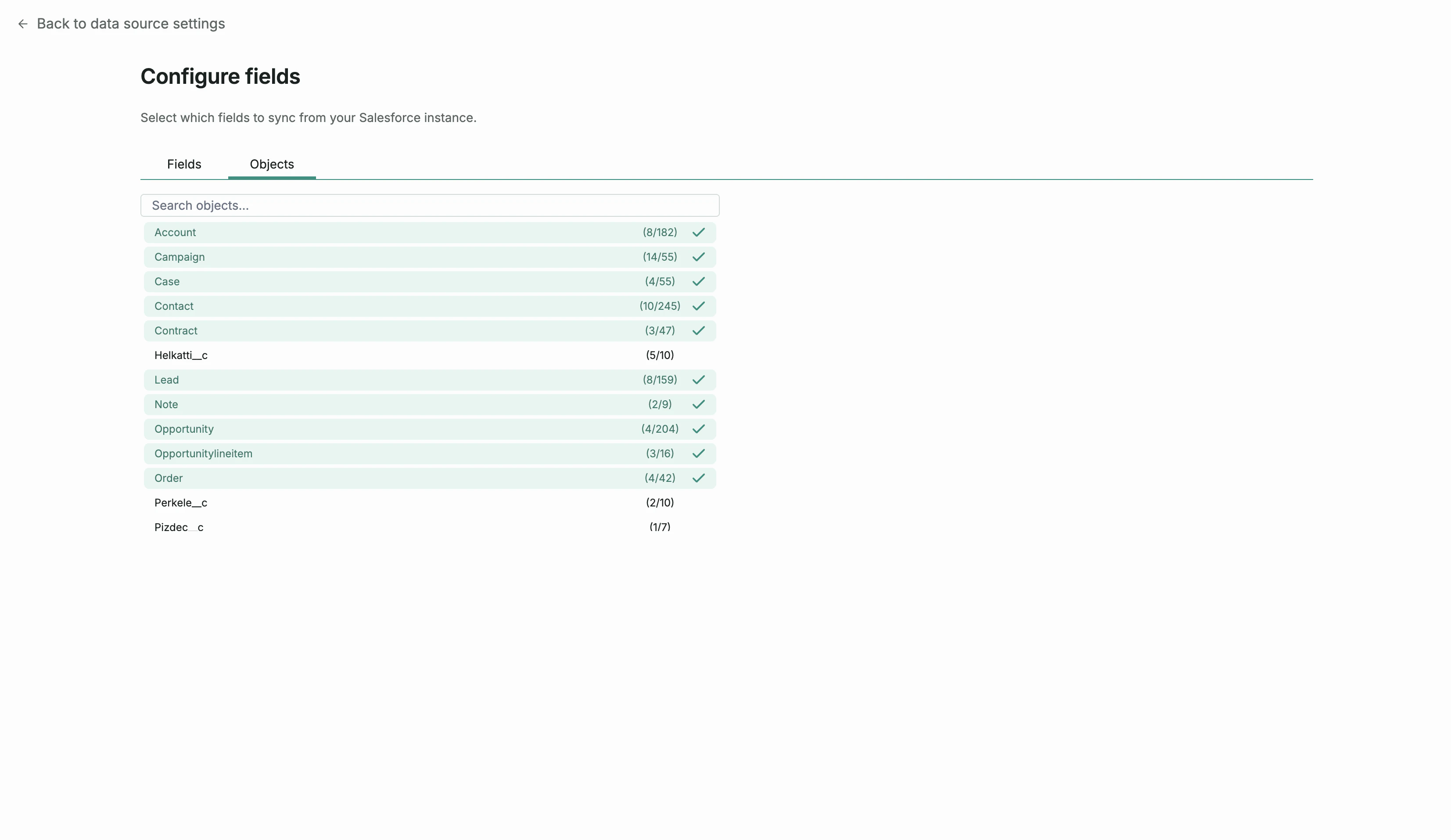
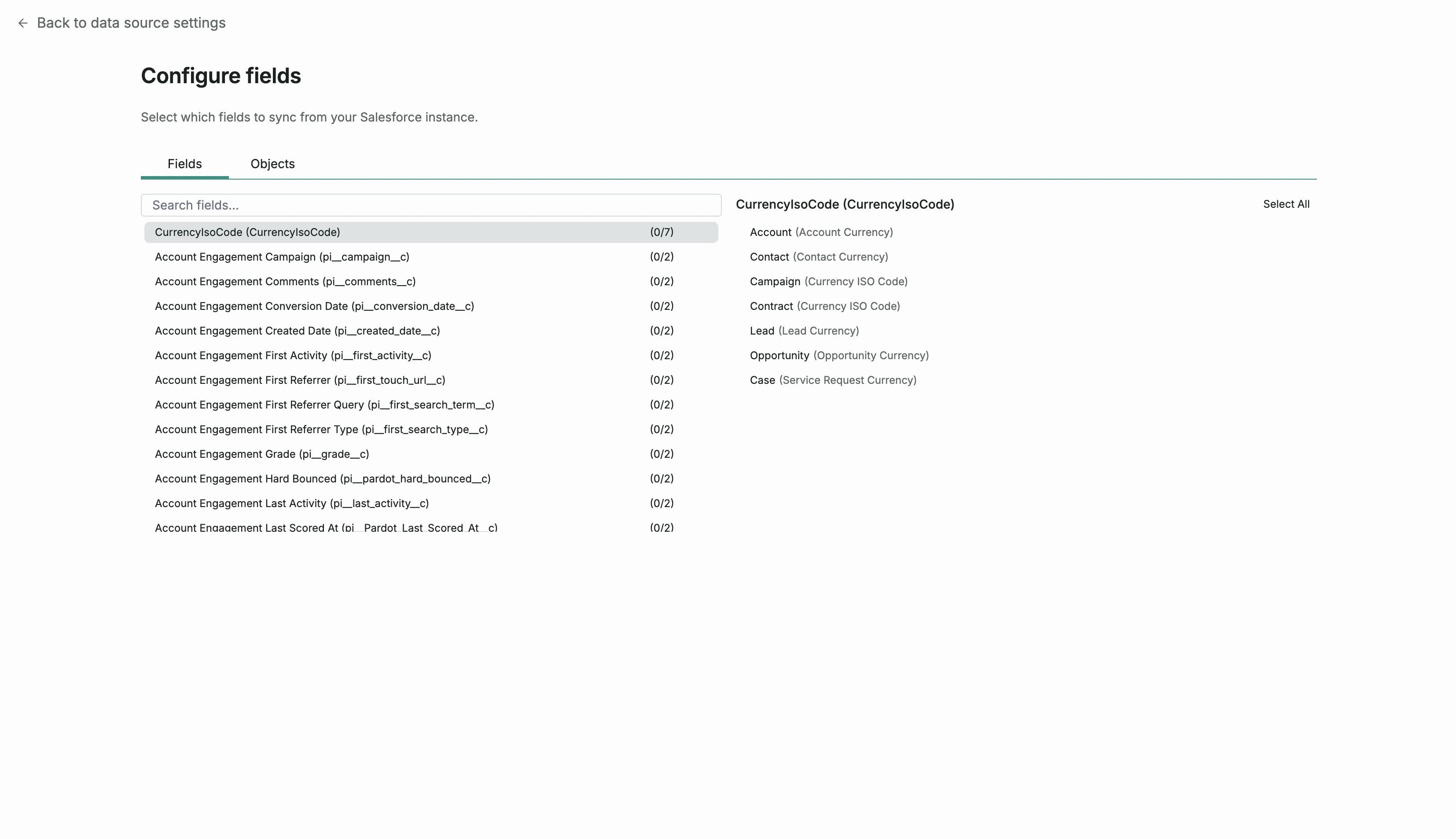
* **Which objects to sync** - Select from supported standard Salesforce objects and custom Salesforce objects. Realm does not show every Salesforce system object.
* **Which fields to include** - Choose which properties/fields are synced for each object. Focus on fields that contain useful searchable content rather than system fields.
* **Record type filtering** - Filter which record types to include for each object.
 ## Permissions
All synced Salesforce data is searchable for users with a Salesforce account in your organization.
You can override this by switching to "Everyone in this organization" on the data source settings page, which makes all synced Salesforce data visible to all Realm users.
## Permissions
All synced Salesforce data is searchable for users with a Salesforce account in your organization.
You can override this by switching to "Everyone in this organization" on the data source settings page, which makes all synced Salesforce data visible to all Realm users.