> ## Documentation Index
> Fetch the complete documentation index at: https://docs.withrealm.com/llms.txt
> Use this file to discover all available pages before exploring further.
# SharePoint
> Connect SharePoint to sync documents and sites
Connect SharePoint to Realm to make documents and site content searchable. Navigate to **Settings** > **Data sources** and click **Connect** on SharePoint, or click **Reconnect** if already connected. To change permission mode, click **Reconnect with app scopes** or **Reconnect with delegated scopes**.
## Connecting SharePoint
Click **Authorize** on the SharePoint data source page. You'll be redirected to Microsoft's OAuth consent screen. Review the permissions and click **Accept**. This does not start syncing any data yet.
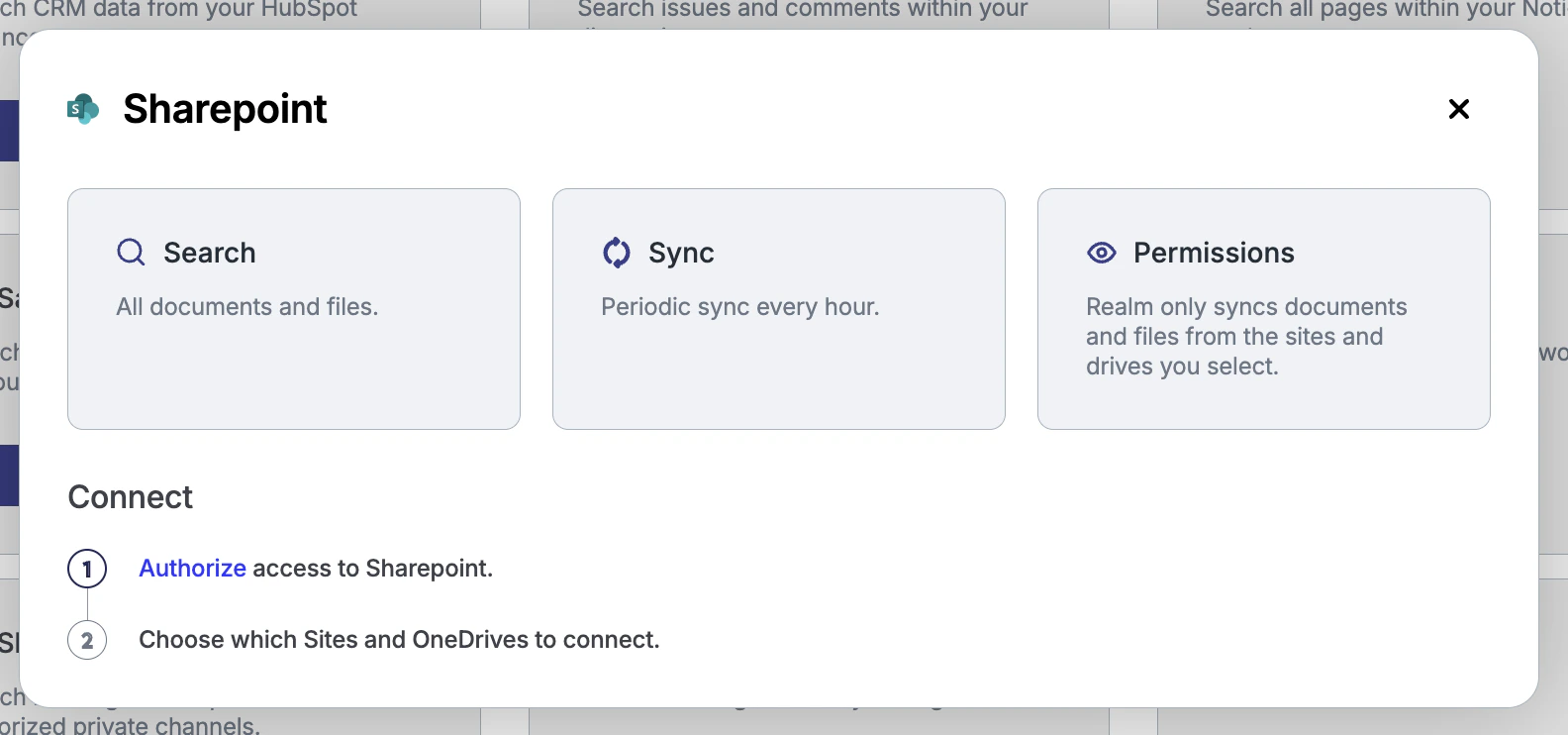
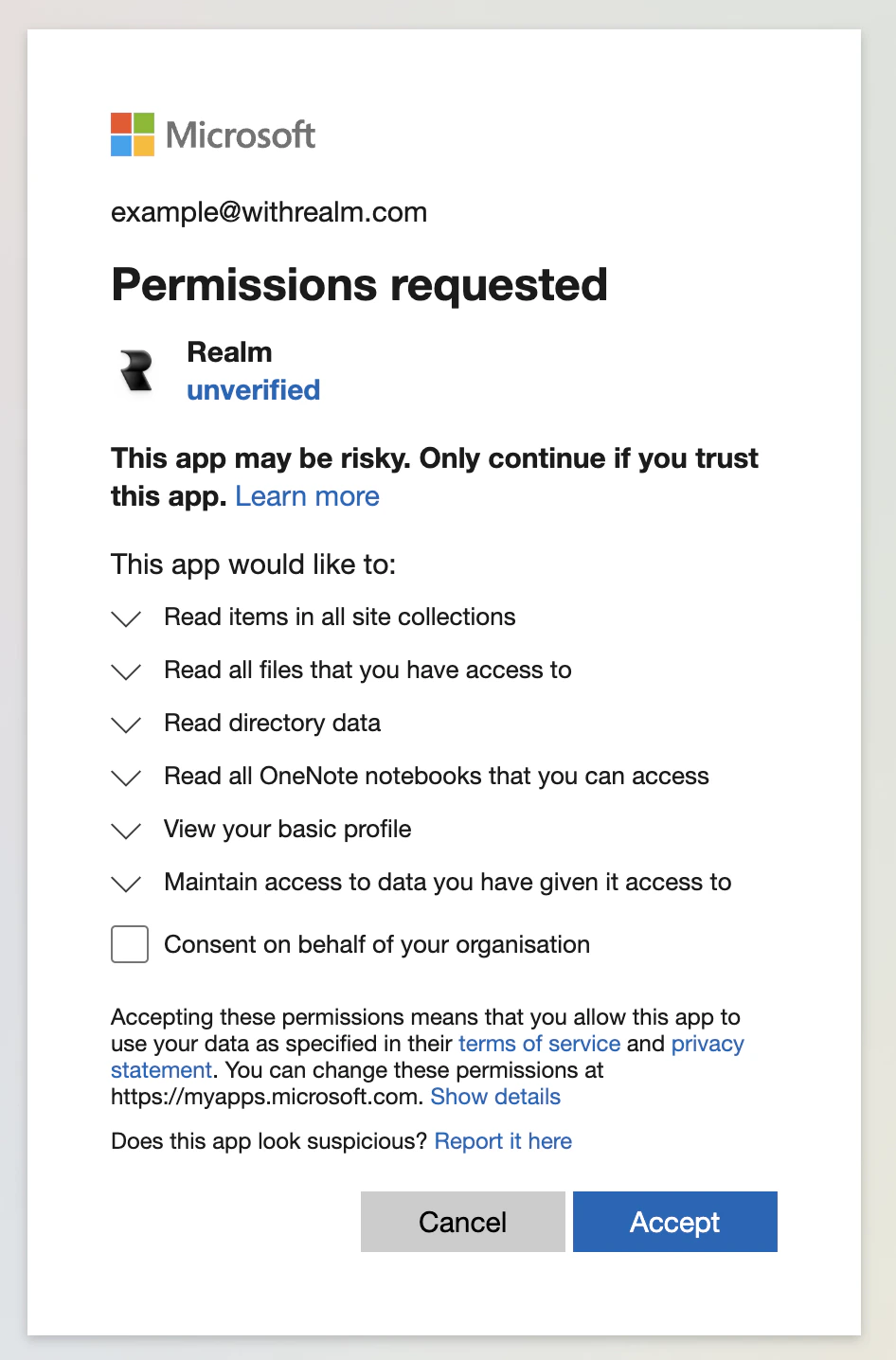 After accepting, you'll be redirected back to Realm. Select which SharePoint sites and OneDrive drives to sync.
 ## Reconnecting expired access
If Microsoft access expires from inactivity or an admin revokes consent in Microsoft Entra, Realm marks the SharePoint connection as disconnected and notifies organization admins. Click **Reconnect** on the SharePoint data source page to authorize access again. This also restores syncing for OneNote notebooks and OneDrive drives selected through the SharePoint connection.
By default, Realm can only access files that the connecting user has access to (delegated scope). To let Realm index all files in SharePoint, you have two options:
* **Grant admin consent** in Microsoft Entra (see below)
* **Connect with app scopes** using the alternative connect button on the data source page
## Granting admin consent
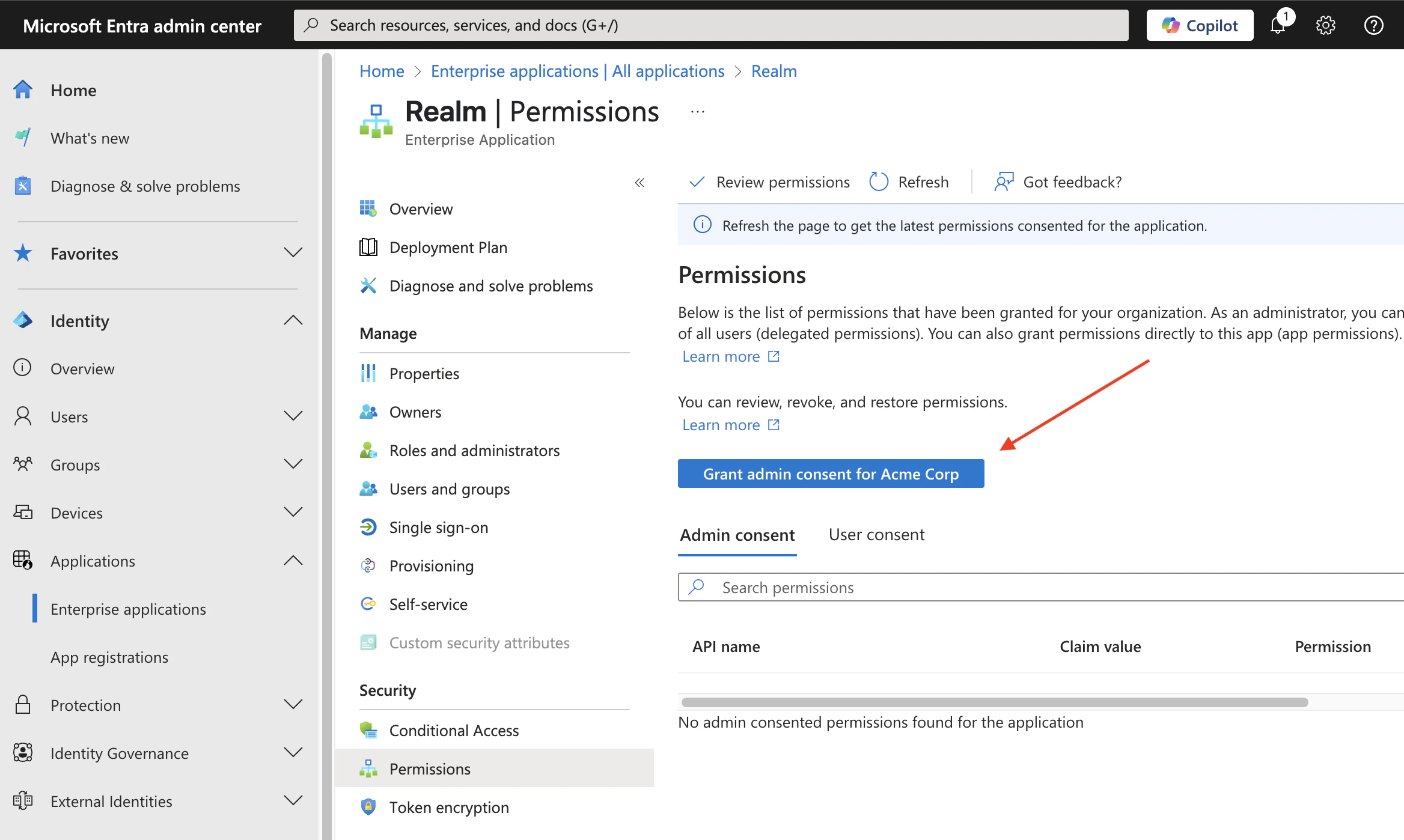
To allow Realm to access all SharePoint content (not just what the connecting user can see), grant admin consent in Microsoft Entra:
1. Go to **Microsoft Entra admin center** > **Applications** > **Enterprise applications**
2. Find **Realm** in the list
3. Go to **Permissions** and click **Grant admin consent for \[your organization]**
## Reconnecting expired access
If Microsoft access expires from inactivity or an admin revokes consent in Microsoft Entra, Realm marks the SharePoint connection as disconnected and notifies organization admins. Click **Reconnect** on the SharePoint data source page to authorize access again. This also restores syncing for OneNote notebooks and OneDrive drives selected through the SharePoint connection.
By default, Realm can only access files that the connecting user has access to (delegated scope). To let Realm index all files in SharePoint, you have two options:
* **Grant admin consent** in Microsoft Entra (see below)
* **Connect with app scopes** using the alternative connect button on the data source page
## Granting admin consent
To allow Realm to access all SharePoint content (not just what the connecting user can see), grant admin consent in Microsoft Entra:
1. Go to **Microsoft Entra admin center** > **Applications** > **Enterprise applications**
2. Find **Realm** in the list
3. Go to **Permissions** and click **Grant admin consent for \[your organization]**
 Both delegated and application scopes still enforce user-level permissions in search results. The scope only affects what Realm can index.
## What gets synced
| Content | Synced |
| ------------------------------------- | ------ |
| Documents and files in selected sites | Yes |
| SharePoint site pages | Yes |
| OneNote notebooks and pages | Yes |
| OneDrive files in selected drives | Yes |
| SharePoint lists | Yes |
Realm syncs non-hidden Microsoft Lists from selected SharePoint sites as searchable list items. Document libraries continue to sync through the normal SharePoint files path.
## File size limits
Realm skips files larger than these limits during sync:
| File type | Default limit |
| -------------------------- | ------------- |
| Plain text files | 20 MB |
| Word and PDF files | 50 MB |
| Spreadsheet/workbook files | 10 MB |
| PowerPoint files | 200 MB |
## Selecting sites and drives
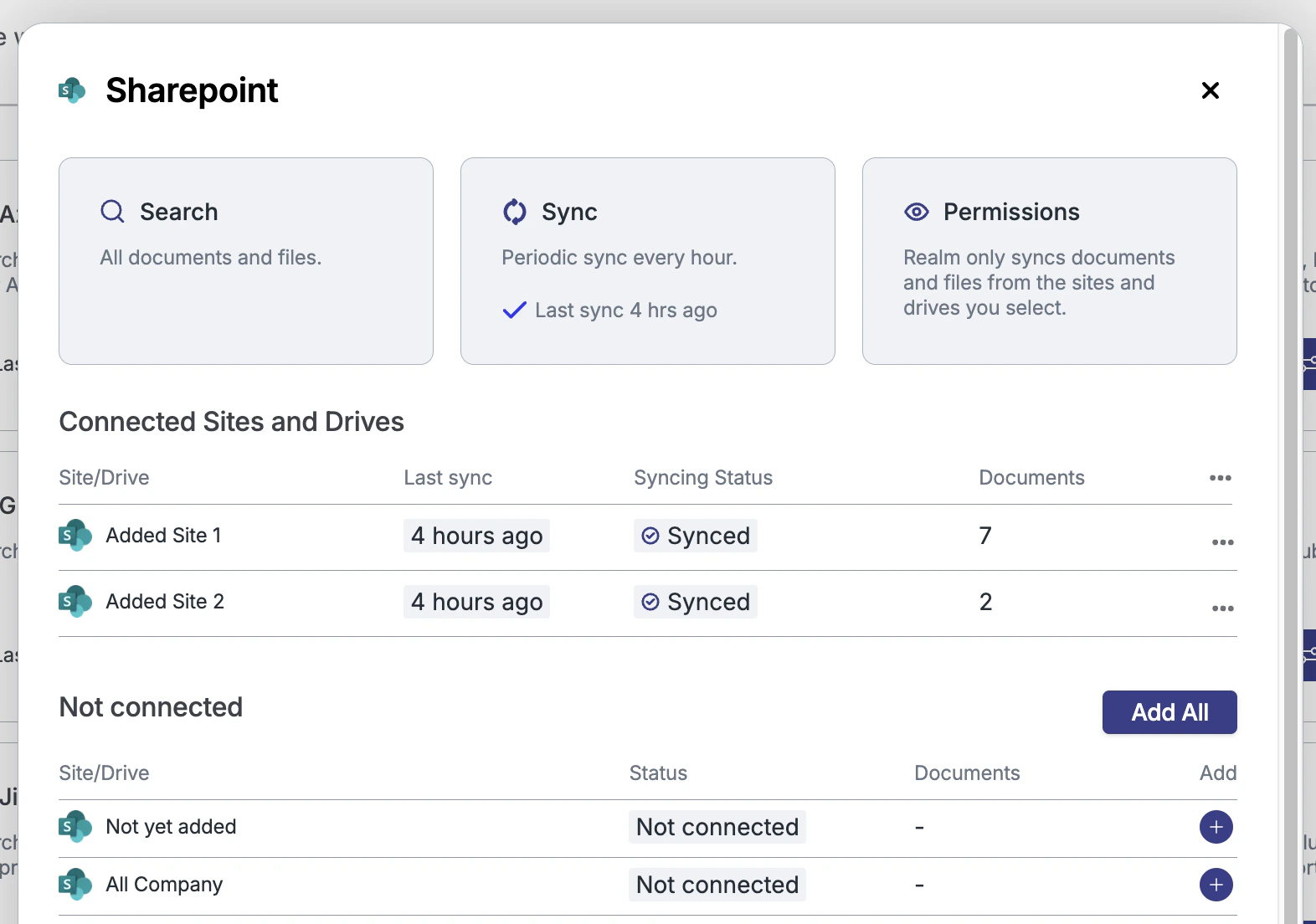
After connecting, choose which SharePoint sites and OneDrive drives to sync. The data source page shows connected sites and drives, and you can add or remove them at any time. Realm only syncs content from the sites and drives you select.
## Permissions
Realm enforces SharePoint's native permission model. Users can only see documents they have access to in SharePoint.
You can override this by switching to "Everyone in this organization" on the data source settings page, which makes all synced SharePoint data visible to all Realm users.
## Restricting API access
To limit what Realm can access:
1. Create a Microsoft service account that only has access to specific sites
2. Ensure the account can consent to applications
3. Use that account when connecting SharePoint
## Required scopes
The SharePoint integration requires:
* `Sites.Read.All`
* `Files.Read.All`
* `Directory.Read.All`
* `Notes.Read.All`
Both delegated and application scopes still enforce user-level permissions in search results. The scope only affects what Realm can index.
## What gets synced
| Content | Synced |
| ------------------------------------- | ------ |
| Documents and files in selected sites | Yes |
| SharePoint site pages | Yes |
| OneNote notebooks and pages | Yes |
| OneDrive files in selected drives | Yes |
| SharePoint lists | Yes |
Realm syncs non-hidden Microsoft Lists from selected SharePoint sites as searchable list items. Document libraries continue to sync through the normal SharePoint files path.
## File size limits
Realm skips files larger than these limits during sync:
| File type | Default limit |
| -------------------------- | ------------- |
| Plain text files | 20 MB |
| Word and PDF files | 50 MB |
| Spreadsheet/workbook files | 10 MB |
| PowerPoint files | 200 MB |
## Selecting sites and drives
After connecting, choose which SharePoint sites and OneDrive drives to sync. The data source page shows connected sites and drives, and you can add or remove them at any time. Realm only syncs content from the sites and drives you select.
## Permissions
Realm enforces SharePoint's native permission model. Users can only see documents they have access to in SharePoint.
You can override this by switching to "Everyone in this organization" on the data source settings page, which makes all synced SharePoint data visible to all Realm users.
## Restricting API access
To limit what Realm can access:
1. Create a Microsoft service account that only has access to specific sites
2. Ensure the account can consent to applications
3. Use that account when connecting SharePoint
## Required scopes
The SharePoint integration requires:
* `Sites.Read.All`
* `Files.Read.All`
* `Directory.Read.All`
* `Notes.Read.All`