> ## Documentation Index
> Fetch the complete documentation index at: https://docs.withrealm.com/llms.txt
> Use this file to discover all available pages before exploring further.
# Slack
> Connect Slack as a data source or install the Slack app
Connect Slack to Realm in two ways:
* **Slack data source**: sync Slack messages, threads, and files so they are searchable in Realm.
* **Slack app only**: use Realm from Slack without syncing Slack messages into Realm knowledge.
Navigate to **Settings** > **Data sources** to connect Slack.
## Connect Slack as a data source
Use the Slack data source when you want Realm to search Slack messages and files as part of your knowledge base. Click **Connect** on the Slack data source page. You'll see two connection modes:
| Mode | Description |
| -------------------------- | ------------------------------------------------------------------------------- |
| **All public channels** | Syncs public channels, plus private channels where the Realm app has been added |
| **Channels with bot only** | Syncs only channels where the Realm app has been added |
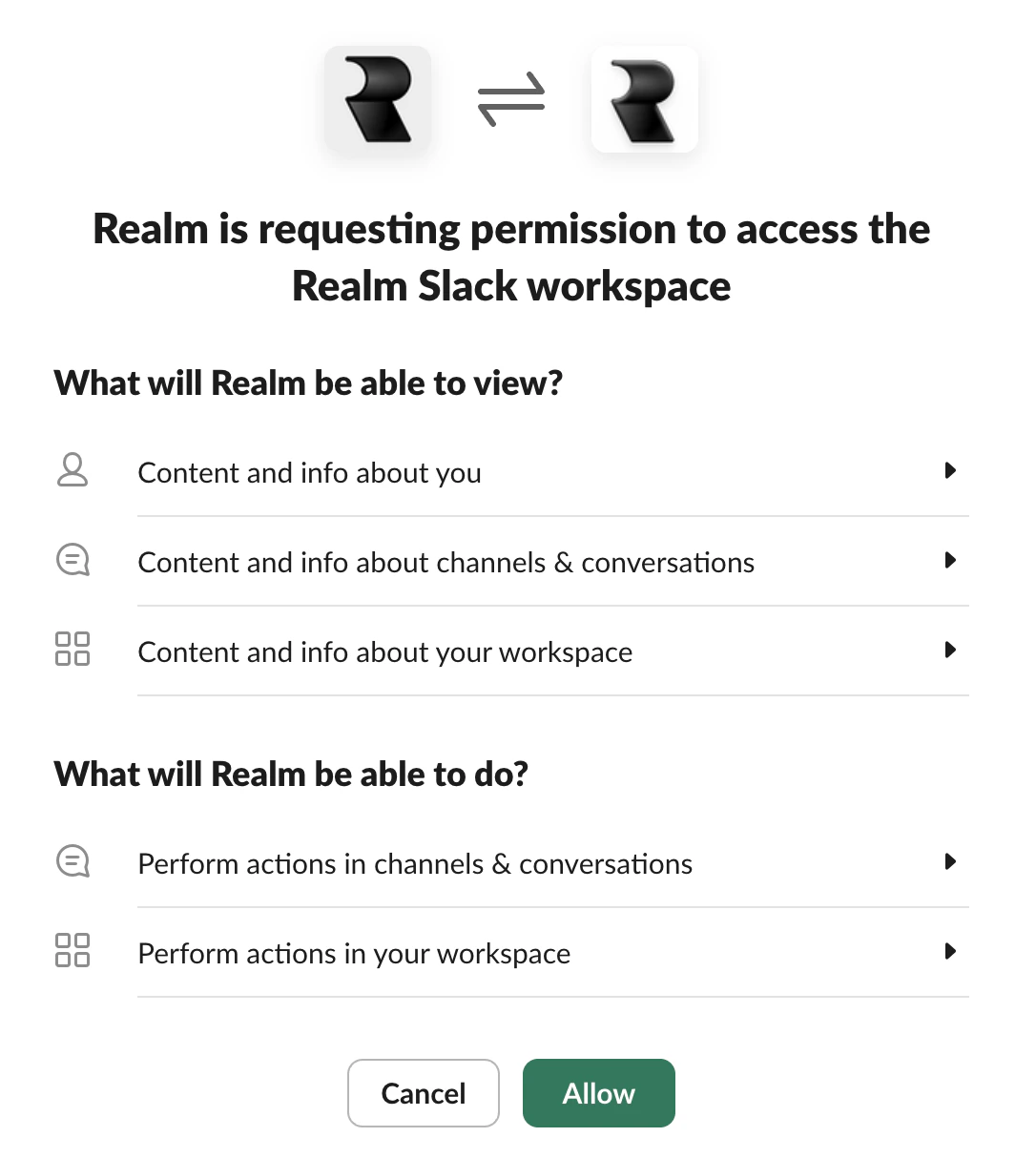
After selecting a mode, you'll be redirected to Slack's OAuth consent screen. Review the permissions and click **Allow**. The person connecting must be a Slack workspace admin.
 ## Connect Slack without syncing knowledge
Use the **Slack App** option when you want people to ask Realm questions from Slack, but you do not want Realm to sync Slack messages as knowledge.
Go to **Settings** > **Data sources**.
Scroll to **Other integrations**.
Click **Install** on **Slack App**.
Review the Slack permissions and click **Allow**. The person installing must be a Slack workspace admin.
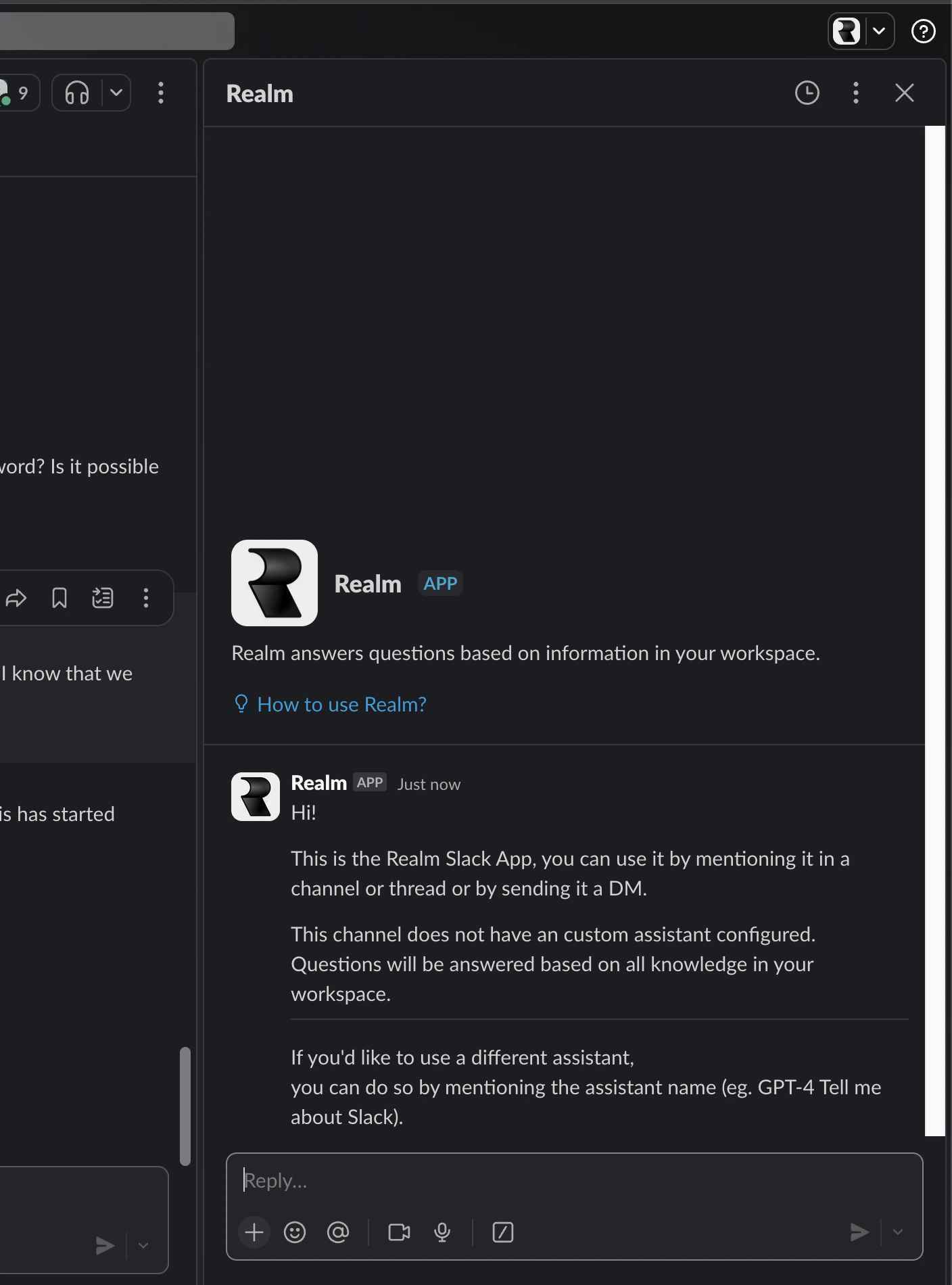
This installs Realm in Slack without starting Slack message sync. Team members can mention `@Realm`, use DMs, and use the Slack app sidebar. For usage details, see [Slack app](/integrations/slack-app).
## What gets synced
By default, Realm syncs messages from **public channels** and any **private channels** where the Realm Slack App has been added. To add Realm to a private channel, tag `@Realm` in the channel.
| Content | Synced |
| --------------------------------------- | ------------------------ |
| Public channel messages and threads | Yes |
| Files shared in channels | Yes |
| Private channels (with Realm app added) | Yes |
| Slack Connect channels | Configurable (see below) |
| DMs | Contact Realm to enable |
| Canvases and Lists | No |
## Permissions
Realm mirrors Slack's permission settings. Users can only see messages from channels they have access to in Slack.
You can override this by switching to "Everyone in this organization" on the data source settings page, which makes all synced Slack data visible to all Realm users.
## Slack message history
Realm syncs historical messages via the Slack API, but due to rate limits this is very slow. Uploading a Slack workspace export is the recommended way to import your full message history.
### Exporting from Slack
As a Slack workspace admin, click **Admin** in the sidebar, then select **Workspace settings** > **Security**.
Click **Import & export data**, then select the **Export** tab. Choose a date range and click **Start export**. See [Slack's export guide](https://slack.com/intl/en-gb/help/articles/201658943-Export-your-workspace-data) for details on what's included per Slack plan.
Slack will send you an email when the export is ready. Download the ZIP file.
### Uploading to Realm
On the Slack data source page, scroll to **Slack Message History** and upload the ZIP file. The maximum file size is 10 GB. If your export is larger, perform multiple exports with different date ranges. A progress indicator will show the upload and processing status.
#### Import privacy settings
Use the **Import privacy settings** dropdown to control which messages are imported:
| Setting | Description |
| ---------------- | ----------------------------------------------- |
| **Public only** | Only import messages from public channels |
| **All channels** | Import messages from all channels in the export |
Past imports are listed below with their status (synced, sync in progress, sync failed).
## Slack AI app view
To use Realm in Slack's AI app view, you need to enable AI apps in your Slack workspace settings. See [Slack's instructions for displaying AI apps](https://slack.com/intl/en-gb/help/articles/33077521383059-Display-AI-apps-in-Slack) and the [Slack App](/integrations/slack-app) page for more details.
## Connect Slack without syncing knowledge
Use the **Slack App** option when you want people to ask Realm questions from Slack, but you do not want Realm to sync Slack messages as knowledge.
Go to **Settings** > **Data sources**.
Scroll to **Other integrations**.
Click **Install** on **Slack App**.
Review the Slack permissions and click **Allow**. The person installing must be a Slack workspace admin.
This installs Realm in Slack without starting Slack message sync. Team members can mention `@Realm`, use DMs, and use the Slack app sidebar. For usage details, see [Slack app](/integrations/slack-app).
## What gets synced
By default, Realm syncs messages from **public channels** and any **private channels** where the Realm Slack App has been added. To add Realm to a private channel, tag `@Realm` in the channel.
| Content | Synced |
| --------------------------------------- | ------------------------ |
| Public channel messages and threads | Yes |
| Files shared in channels | Yes |
| Private channels (with Realm app added) | Yes |
| Slack Connect channels | Configurable (see below) |
| DMs | Contact Realm to enable |
| Canvases and Lists | No |
## Permissions
Realm mirrors Slack's permission settings. Users can only see messages from channels they have access to in Slack.
You can override this by switching to "Everyone in this organization" on the data source settings page, which makes all synced Slack data visible to all Realm users.
## Slack message history
Realm syncs historical messages via the Slack API, but due to rate limits this is very slow. Uploading a Slack workspace export is the recommended way to import your full message history.
### Exporting from Slack
As a Slack workspace admin, click **Admin** in the sidebar, then select **Workspace settings** > **Security**.
Click **Import & export data**, then select the **Export** tab. Choose a date range and click **Start export**. See [Slack's export guide](https://slack.com/intl/en-gb/help/articles/201658943-Export-your-workspace-data) for details on what's included per Slack plan.
Slack will send you an email when the export is ready. Download the ZIP file.
### Uploading to Realm
On the Slack data source page, scroll to **Slack Message History** and upload the ZIP file. The maximum file size is 10 GB. If your export is larger, perform multiple exports with different date ranges. A progress indicator will show the upload and processing status.
#### Import privacy settings
Use the **Import privacy settings** dropdown to control which messages are imported:
| Setting | Description |
| ---------------- | ----------------------------------------------- |
| **Public only** | Only import messages from public channels |
| **All channels** | Import messages from all channels in the export |
Past imports are listed below with their status (synced, sync in progress, sync failed).
## Slack AI app view
To use Realm in Slack's AI app view, you need to enable AI apps in your Slack workspace settings. See [Slack's instructions for displaying AI apps](https://slack.com/intl/en-gb/help/articles/33077521383059-Display-AI-apps-in-Slack) and the [Slack App](/integrations/slack-app) page for more details.
 ## Noise reduction
Slack can be a noisy data source. To keep results relevant, Realm:
* Ignores threads with only bot messages and no human replies
* Ranks archived channels lower in search results
* Ranks very short messages lower in search results
## Required scopes
`im:history`, `im:read`, `im:write`, `chat:write`, `chat:write.customize`, `app_mentions:read`, `reactions:write`, `channels:read`, `groups:read`, `team:read`, `assistant:write`, `users:read`, `users:read.email`
`channels:history`, `channels:read`, `files:read`, `pins:read`, `reactions:read`, `team:read`, `users:read`, `users:read.email`, `im:history`, `im:read`, `chat:write`, `chat:write.customize`, `app_mentions:read`, `reactions:write`, `groups:read`, `assistant:write`, `mpim:history`, `mpim:read`, `groups:history`
`channels:history`, `channels:read`, `files:read`, `pins:read`, `reactions:read`, `team:read`, `users:read`, `users:read.email`, `search:read`
## Using Realm in Slack
Once connected, team members can interact with Realm directly in Slack. For usage details, see the [User guide: Slack app](https://realm.mintlify.app/integrations/slack-app).
### Slack Connect channels
Slack Connect channels (shared with external organizations) are not synced by default. You can configure this:
| Setting | Description |
| ---------------------- | ---------------------------------------------------------------------------------------------- |
| **Sync only selected** | Choose specific Slack Connect channels to sync. Click **Select channels** to pick from a list. |
| **Sync all** | Sync all Slack Connect channels |
### Public channel answer mode
Controls how Realm responds when mentioned in public channels (or private channels where the bot has been added):
| Mode | Description |
| ----------- | ----------------------------------------------------------------------------------------------------------------------------------------------- |
| **Preview** | The answer is posted as an ephemeral message only visible to the user who asked. They can then choose to share it to the channel or dismiss it. |
| **Share** | Realm answers directly in the channel, visible to everyone |
| **None** | Realm will not answer questions in channels |
If users report that an agent answer says "Only visible to you" and must be shared manually, the workspace is using **Preview** mode. Switch this setting to **Share** to post answers directly to Slack threads.
### Restrict bot to configured channels
## Noise reduction
Slack can be a noisy data source. To keep results relevant, Realm:
* Ignores threads with only bot messages and no human replies
* Ranks archived channels lower in search results
* Ranks very short messages lower in search results
## Required scopes
`im:history`, `im:read`, `im:write`, `chat:write`, `chat:write.customize`, `app_mentions:read`, `reactions:write`, `channels:read`, `groups:read`, `team:read`, `assistant:write`, `users:read`, `users:read.email`
`channels:history`, `channels:read`, `files:read`, `pins:read`, `reactions:read`, `team:read`, `users:read`, `users:read.email`, `im:history`, `im:read`, `chat:write`, `chat:write.customize`, `app_mentions:read`, `reactions:write`, `groups:read`, `assistant:write`, `mpim:history`, `mpim:read`, `groups:history`
`channels:history`, `channels:read`, `files:read`, `pins:read`, `reactions:read`, `team:read`, `users:read`, `users:read.email`, `search:read`
## Using Realm in Slack
Once connected, team members can interact with Realm directly in Slack. For usage details, see the [User guide: Slack app](https://realm.mintlify.app/integrations/slack-app).
### Slack Connect channels
Slack Connect channels (shared with external organizations) are not synced by default. You can configure this:
| Setting | Description |
| ---------------------- | ---------------------------------------------------------------------------------------------- |
| **Sync only selected** | Choose specific Slack Connect channels to sync. Click **Select channels** to pick from a list. |
| **Sync all** | Sync all Slack Connect channels |
### Public channel answer mode
Controls how Realm responds when mentioned in public channels (or private channels where the bot has been added):
| Mode | Description |
| ----------- | ----------------------------------------------------------------------------------------------------------------------------------------------- |
| **Preview** | The answer is posted as an ephemeral message only visible to the user who asked. They can then choose to share it to the channel or dismiss it. |
| **Share** | Realm answers directly in the channel, visible to everyone |
| **None** | Realm will not answer questions in channels |
If users report that an agent answer says "Only visible to you" and must be shared manually, the workspace is using **Preview** mode. Switch this setting to **Share** to post answers directly to Slack threads.
### Restrict bot to configured channels
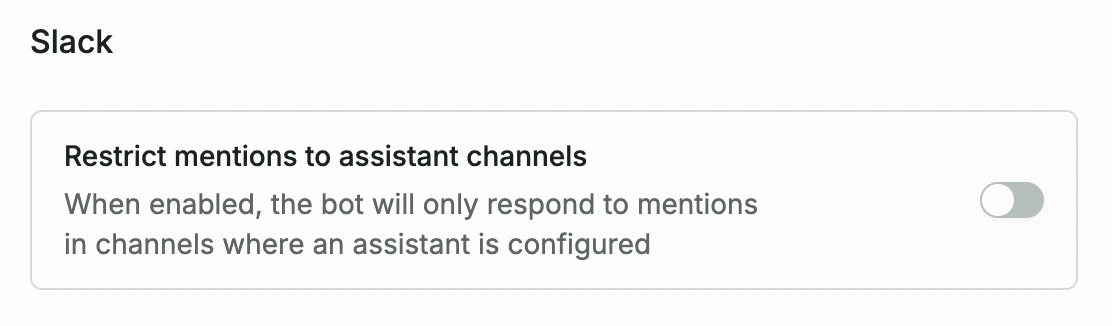 When **Restrict mentions to assistant channels** is enabled, the Realm bot will only respond to mentions in Slack channels where an assistant is specifically configured. In all other channels, the bot will ignore mentions.
When disabled, the bot responds to mentions in any channel it has been added to.
This setting applies to all agents in your organization. Individual agents cannot override it.
When **Restrict mentions to assistant channels** is enabled, the Realm bot will only respond to mentions in Slack channels where an assistant is specifically configured. In all other channels, the bot will ignore mentions.
When disabled, the bot responds to mentions in any channel it has been added to.
This setting applies to all agents in your organization. Individual agents cannot override it.