> ## Documentation Index
> Fetch the complete documentation index at: https://docs.withrealm.com/llms.txt
> Use this file to discover all available pages before exploring further.
# MCP
> Connect custom MCP servers to extend what your agents can do
MCP (Model Context Protocol) is an open protocol for connecting agents to external tools and data sources. You can add custom MCP servers to Realm to extend your agents' capabilities beyond built-in tools.
MCP servers are not available on trial plans.
## Adding a server
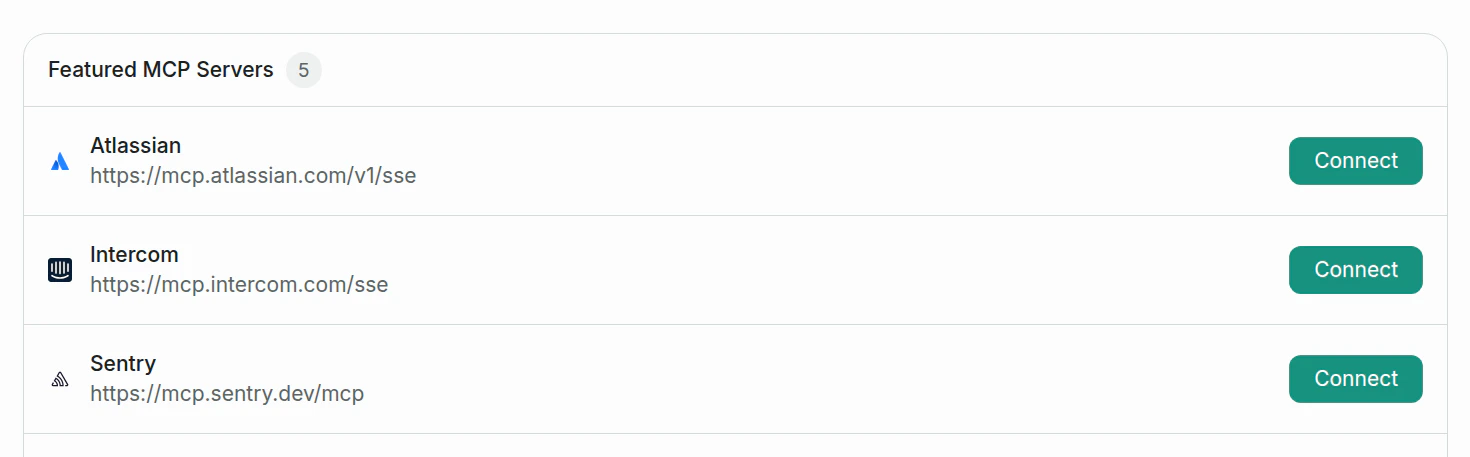
Click **Add MCP Server** from the Tools page. You can either connect a **Featured MCP Server** with one click, or add a custom server manually.

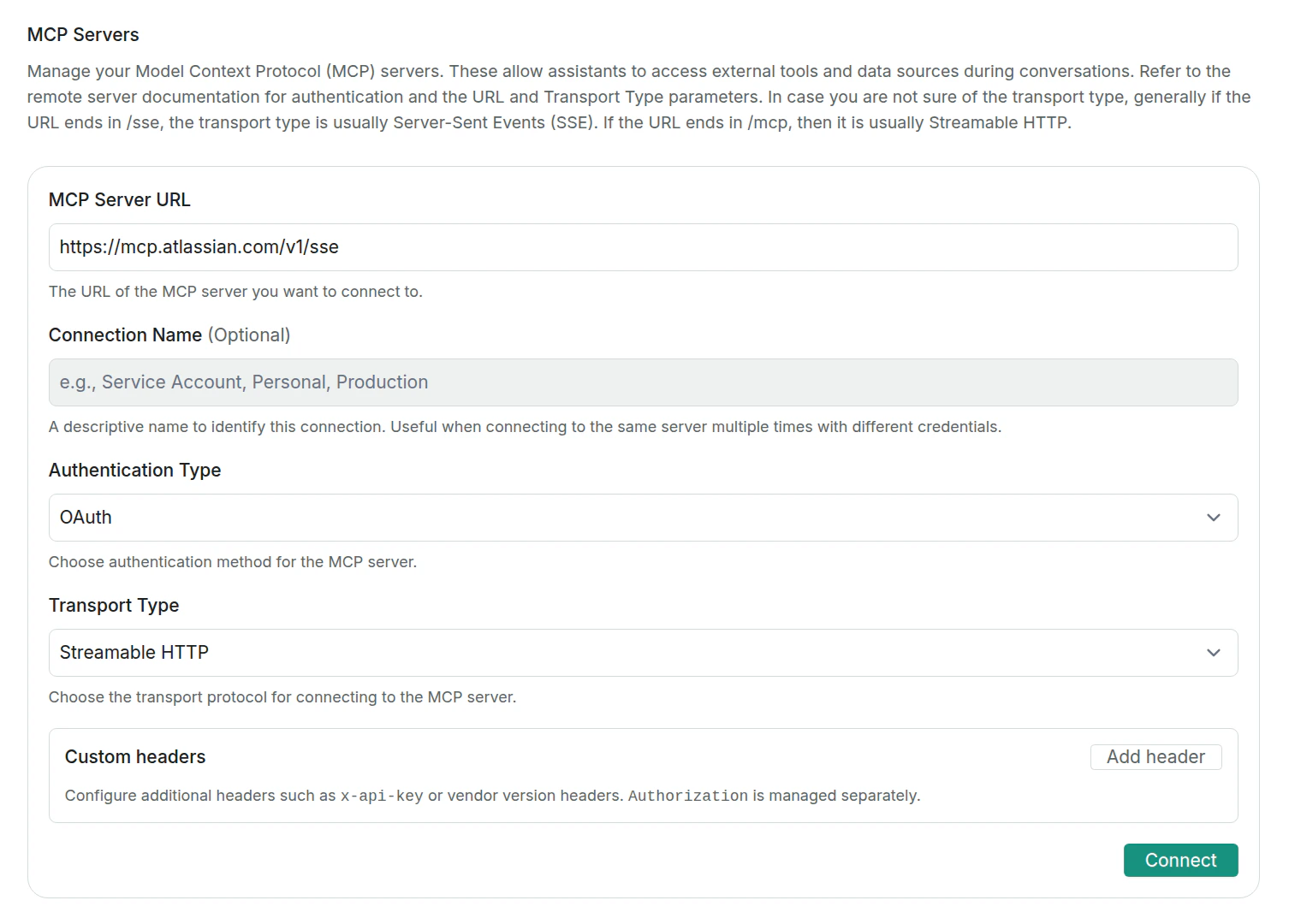
 Provide the URL of the MCP server.
Select **HTTP** or **SSE** (Server-Sent Events).
Choose **OAuth** or **Bearer Token** and enter the required credentials. You can also add **custom headers** (e.g. `x-api-key` or vendor version headers). The `Authorization` header is managed separately by the authentication type.
Optionally give the connection a descriptive name. This is useful when connecting to the same server multiple times with different credentials.
Click **Connect** to complete the setup.
Provide the URL of the MCP server.
Select **HTTP** or **SSE** (Server-Sent Events).
Choose **OAuth** or **Bearer Token** and enter the required credentials. You can also add **custom headers** (e.g. `x-api-key` or vendor version headers). The `Authorization` header is managed separately by the authentication type.
Optionally give the connection a descriptive name. This is useful when connecting to the same server multiple times with different credentials.
Click **Connect** to complete the setup.
 ## Featured servers
Realm highlights these featured MCP servers for quick one-click setup:
## Managing servers
Once added, you can **reconnect** or **delete** MCP servers from the Tools page.
Admins can also manage MCP connections created by other admins in the same
workspace, including updating connection names, bearer tokens, and custom header
values. For OAuth connections, reconnection must be performed by the admin who
owns the connection. Other admins can remove the OAuth connection and create a
new one with their own credentials if needed.
When a connected server's authorization later fails (for example, an expired
OAuth token), its tools become unavailable to the agent. If the agent could
have used such a tool during a chat, the assistant message shows a **disconnected
connector** notice naming the affected server, with a **Reconnect** action for
connections you own. For connections owned by another admin, the notice asks you
to have the owner reconnect.
## Featured servers
Realm highlights these featured MCP servers for quick one-click setup:
## Managing servers
Once added, you can **reconnect** or **delete** MCP servers from the Tools page.
Admins can also manage MCP connections created by other admins in the same
workspace, including updating connection names, bearer tokens, and custom header
values. For OAuth connections, reconnection must be performed by the admin who
owns the connection. Other admins can remove the OAuth connection and create a
new one with their own credentials if needed.
When a connected server's authorization later fails (for example, an expired
OAuth token), its tools become unavailable to the agent. If the agent could
have used such a tool during a chat, the assistant message shows a **disconnected
connector** notice naming the affected server, with a **Reconnect** action for
connections you own. For connections owned by another admin, the notice asks you
to have the owner reconnect.