> ## Documentation Index
> Fetch the complete documentation index at: https://docs.withrealm.com/llms.txt
> Use this file to discover all available pages before exploring further.
# Organization context
> Set organization-wide instructions and context for AI assistants
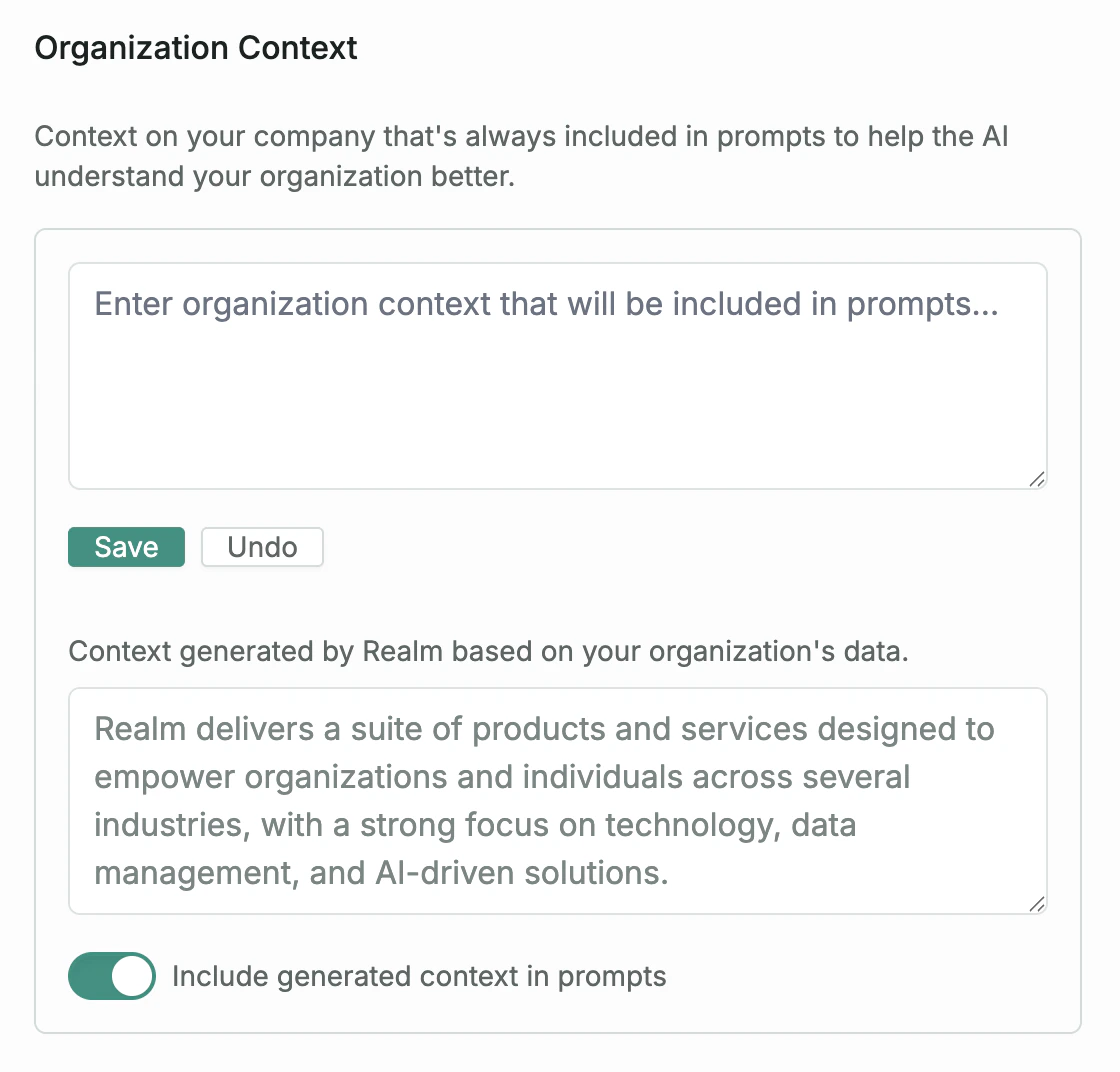
Organization Context lets you provide custom instructions that are included in every AI prompt across your Realm workspace. Navigate to **Settings** > **Organization settings**.
 ## How it works
The text you enter here is automatically prepended to all AI interactions (chat, agents, and RFP fills). Use it to give the AI background about your company, preferred tone, terminology, or any standing instructions.
For example:
* Company name, industry, and key products
* Preferred writing style or tone
* Terms or acronyms specific to your organization
* Instructions like "Always respond in British English"
## Auto-generated context
Realm automatically generates organization context based on public data sources. This is shown in a separate card below the manual editor. Use the **Include generated context in prompts** toggle to control whether it is included alongside your own context.
Review the generated context and use it as a starting point for writing your own.
## Editing Context
Use the text editor to write or modify your organization context. Click **Save** to apply. The new context takes effect immediately for all users. Use **Undo** to revert unsaved changes.
Organization context applies to all users and all AI interactions in your workspace. Keep it concise and relevant, as overly long context can reduce AI response quality.
## How it works
The text you enter here is automatically prepended to all AI interactions (chat, agents, and RFP fills). Use it to give the AI background about your company, preferred tone, terminology, or any standing instructions.
For example:
* Company name, industry, and key products
* Preferred writing style or tone
* Terms or acronyms specific to your organization
* Instructions like "Always respond in British English"
## Auto-generated context
Realm automatically generates organization context based on public data sources. This is shown in a separate card below the manual editor. Use the **Include generated context in prompts** toggle to control whether it is included alongside your own context.
Review the generated context and use it as a starting point for writing your own.
## Editing Context
Use the text editor to write or modify your organization context. Click **Save** to apply. The new context takes effect immediately for all users. Use **Undo** to revert unsaved changes.
Organization context applies to all users and all AI interactions in your workspace. Keep it concise and relevant, as overly long context can reduce AI response quality.