> ## Documentation Index
> Fetch the complete documentation index at: https://docs.withrealm.com/llms.txt
> Use this file to discover all available pages before exploring further.
# Overview of Chat
> Ask questions, run agents, and execute work
## What is Chat?
Chat is the primary interface for working with Realm. It allows you to ask questions, run agents, and execute work.
With Chat, you can:
* Ask questions from the connected systems
* Run different agents, tools or LLMs
* Use capabilities such as Web Search, data analysis, and image generation
## Answer modes
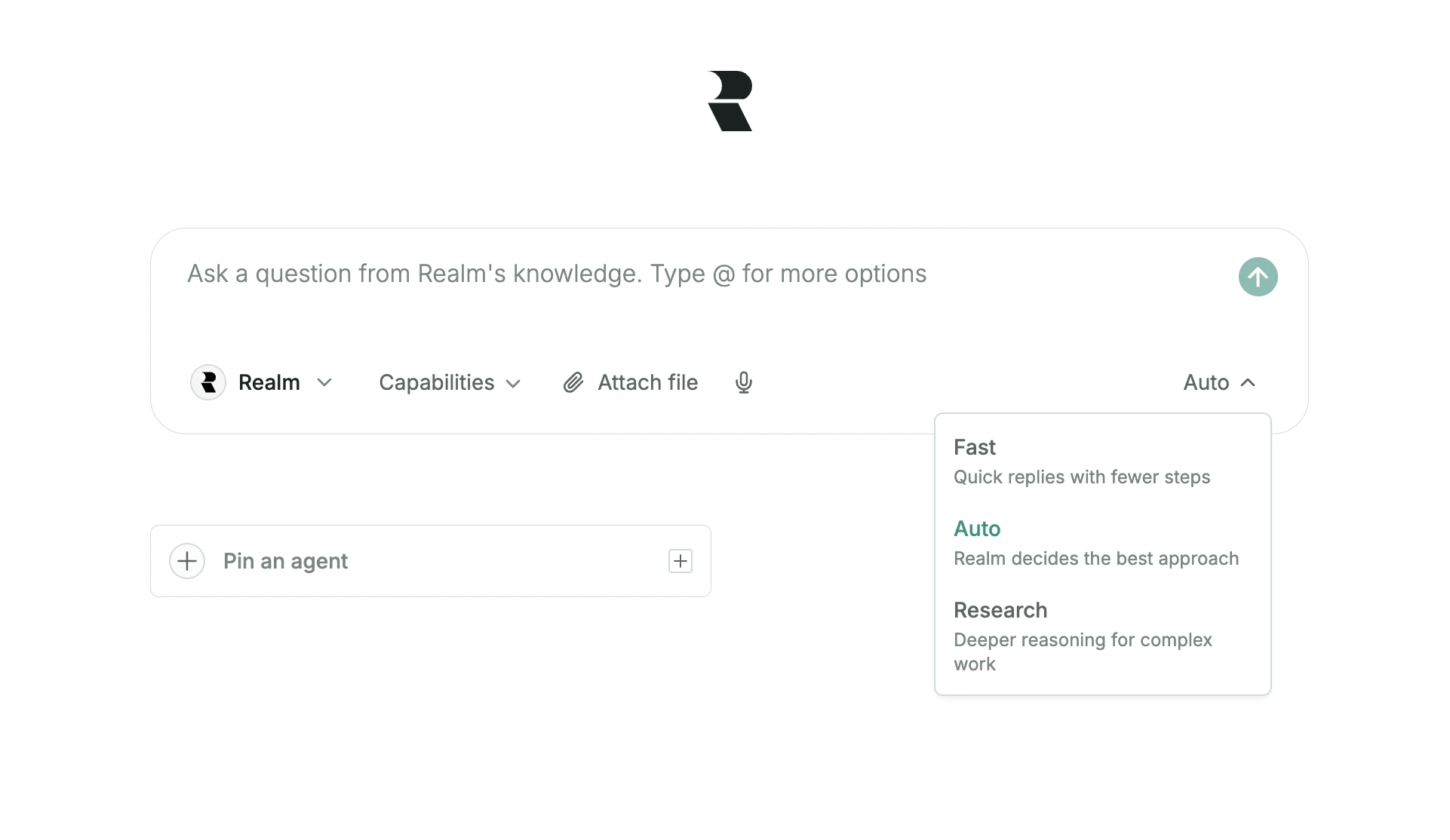 Realm provides different answer modes to control how it approaches your query:
* **Fast**: Delivers quick answers for straightforward questions.
* **Auto**: Realm automatically determines the best approach.
* **Research**: Performs an in-depth, multi-step analysis for more complex queries. It breaks down your request, creates a research plan, and consults numerous sources to compile a comprehensive answer.
## Capabilities and tools
Capabilities extend what Realm can do when answering your questions. Some can be enabled manually, while Realm automatically uses data analysis when a request requires computation or visualization. Different agents may have access to different capabilities.
* **Internal search**: Search across your company's connected knowledge sources.
* **Web search**: Combine internal knowledge with real-time information from the public web.
* **Data analysis**: Analyze structured files such as spreadsheets to calculate metrics, identify trends, and generate charts.
* **Image generation**: Create and edit images from text prompts directly in Chat.
Tools allow Realm to interact directly with your connected applications. When a tool is enabled, Realm can take actions in that system through Chat. For example, enabling the HubSpot tool allows Realm to retrieve CRM data or update records on your behalf.
To learn more about how to add tools to Realm, see [Tools and actions](/agents/tools-and-actions).
## File attachments
Realm provides different answer modes to control how it approaches your query:
* **Fast**: Delivers quick answers for straightforward questions.
* **Auto**: Realm automatically determines the best approach.
* **Research**: Performs an in-depth, multi-step analysis for more complex queries. It breaks down your request, creates a research plan, and consults numerous sources to compile a comprehensive answer.
## Capabilities and tools
Capabilities extend what Realm can do when answering your questions. Some can be enabled manually, while Realm automatically uses data analysis when a request requires computation or visualization. Different agents may have access to different capabilities.
* **Internal search**: Search across your company's connected knowledge sources.
* **Web search**: Combine internal knowledge with real-time information from the public web.
* **Data analysis**: Analyze structured files such as spreadsheets to calculate metrics, identify trends, and generate charts.
* **Image generation**: Create and edit images from text prompts directly in Chat.
Tools allow Realm to interact directly with your connected applications. When a tool is enabled, Realm can take actions in that system through Chat. For example, enabling the HubSpot tool allows Realm to retrieve CRM data or update records on your behalf.
To learn more about how to add tools to Realm, see [Tools and actions](/agents/tools-and-actions).
## File attachments
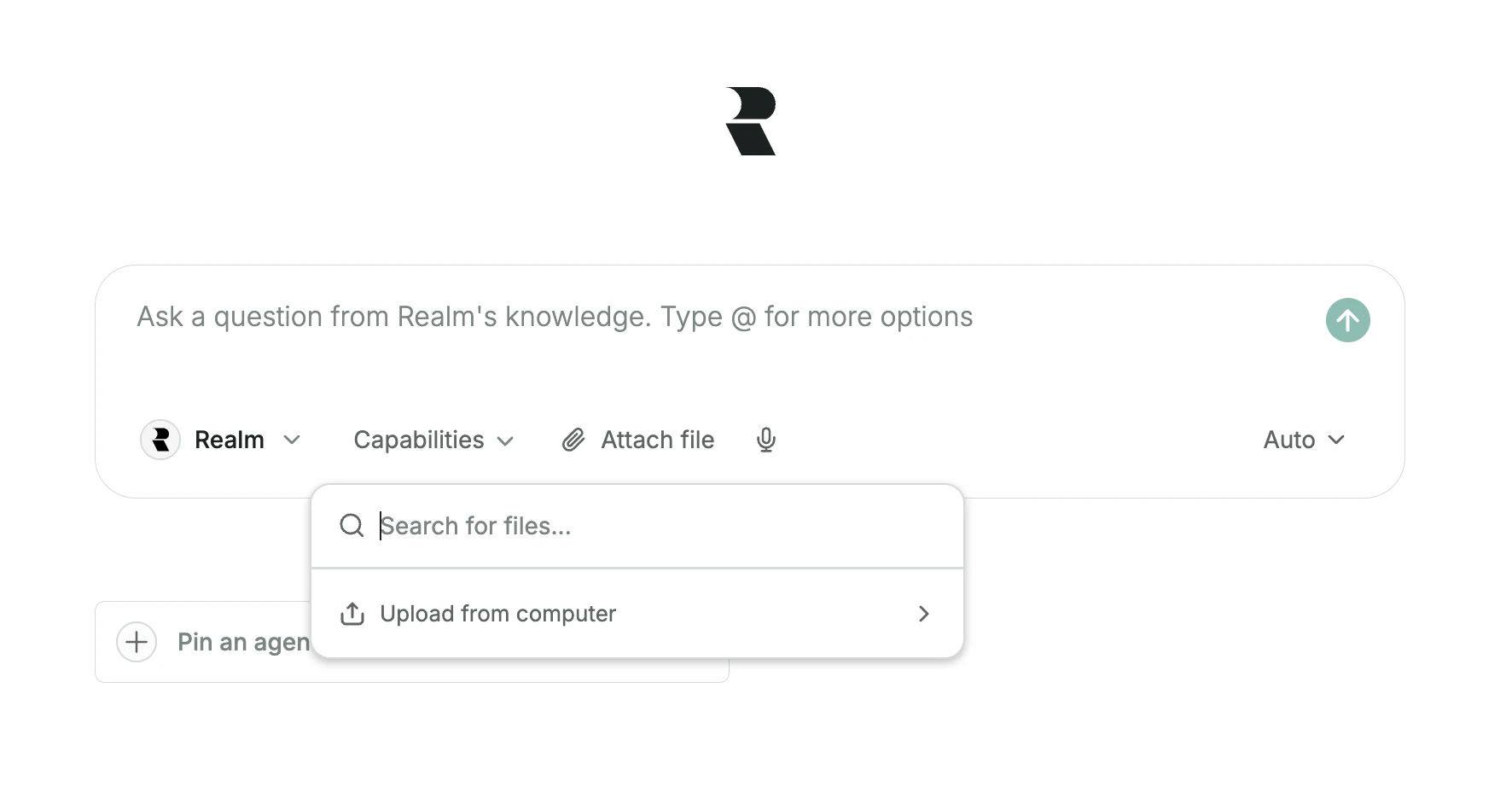 Attach files to a Chat conversation either from your connected files or upload from your computer for additional context.
Click the "Attach file" button in the chat input area.
Choose files already in Realm or upload new ones from your device.
Type your question about the attached files and send.
You can attach up to **20 files** per Chat conversation. Realm supports a wide range of file types including documents (PDF, DOCX, TXT), spreadsheets (XLSX, CSV), presentations (PPTX), and images (PNG, JPG).
Example queries:
* "Summarize the key points from this contract"
* "What are the main findings in this research report?"
* "Extract all the dates and deadlines from this document"
* "Compare the data in these two spreadsheets"
## Answer view
Attach files to a Chat conversation either from your connected files or upload from your computer for additional context.
Click the "Attach file" button in the chat input area.
Choose files already in Realm or upload new ones from your device.
Type your question about the attached files and send.
You can attach up to **20 files** per Chat conversation. Realm supports a wide range of file types including documents (PDF, DOCX, TXT), spreadsheets (XLSX, CSV), presentations (PPTX), and images (PNG, JPG).
Example queries:
* "Summarize the key points from this contract"
* "What are the main findings in this research report?"
* "Extract all the dates and deadlines from this document"
* "Compare the data in these two spreadsheets"
## Answer view
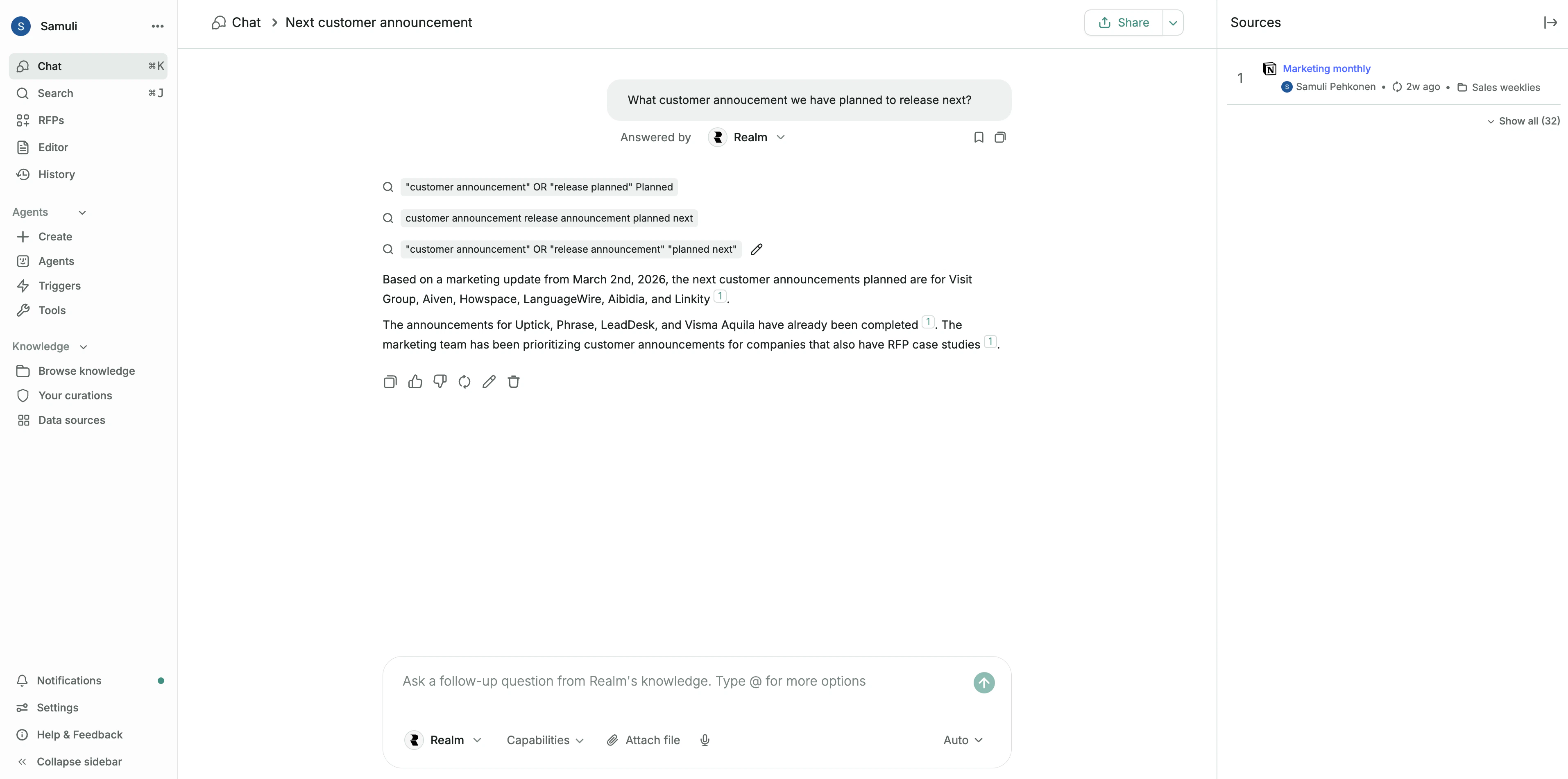 After you send a query in Realm, you are taken to the Answer view. In this view, you'll see the answer generated by Realm and the sources used to produce it.
### Citations
Sources appear on the right side. They show exactly where the information came from, helping you verify and explore the underlying material. Hover over a source to preview it directly inside Realm.
See the original sources behind each answer
Validate the accuracy and relevance of the response
Quickly navigate to the underlying files or pages
### Best practices for citations
For critical decisions or external communications, click through to the source to confirm accuracy.
Ensure the cited document is current and hasn't been superseded by newer information.
When available, cross-reference multiple citations to build confidence in the answer.
## Answer actions
After you send a query in Realm, you are taken to the Answer view. In this view, you'll see the answer generated by Realm and the sources used to produce it.
### Citations
Sources appear on the right side. They show exactly where the information came from, helping you verify and explore the underlying material. Hover over a source to preview it directly inside Realm.
See the original sources behind each answer
Validate the accuracy and relevance of the response
Quickly navigate to the underlying files or pages
### Best practices for citations
For critical decisions or external communications, click through to the source to confirm accuracy.
Ensure the cited document is current and hasn't been superseded by newer information.
When available, cross-reference multiple citations to build confidence in the answer.
## Answer actions
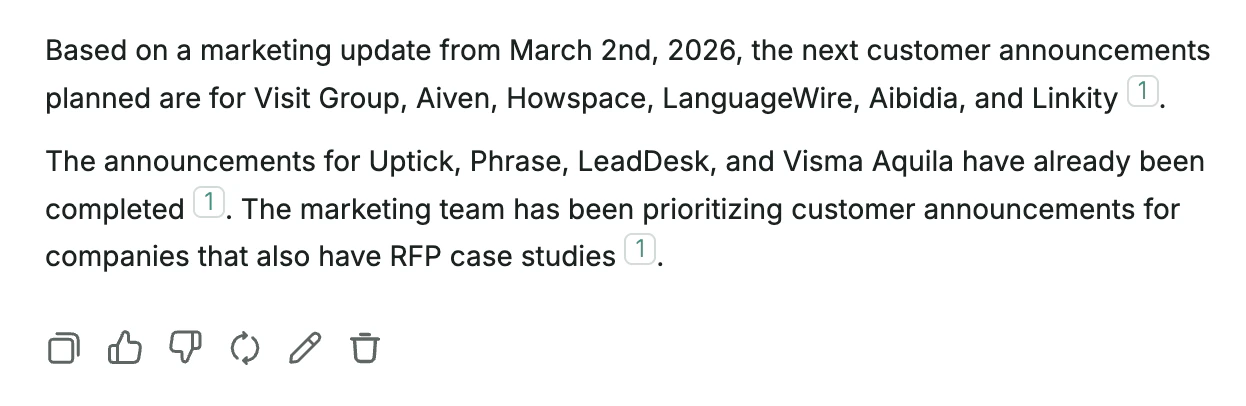 At the bottom of each answer, you'll find actions that let you:
* Copy the answer to your clipboard
* Rate the answer with thumbs up or down to help improve Realm
* Retry the message
* Edit the message in the side panel
* Delete the message
## Sharing answers
You can share a chat by clicking Share next to the sources.
Shared chats can only be viewed by users in your workspace. Others can read the conversation and preview the sources, but they cannot edit or continue the chat.
From the same menu, you can also download the chat as a .txt file.
## Realm, agents, and LLMs
At the bottom of each answer, you'll find actions that let you:
* Copy the answer to your clipboard
* Rate the answer with thumbs up or down to help improve Realm
* Retry the message
* Edit the message in the side panel
* Delete the message
## Sharing answers
You can share a chat by clicking Share next to the sources.
Shared chats can only be viewed by users in your workspace. Others can read the conversation and preview the sources, but they cannot edit or continue the chat.
From the same menu, you can also download the chat as a .txt file.
## Realm, agents, and LLMs
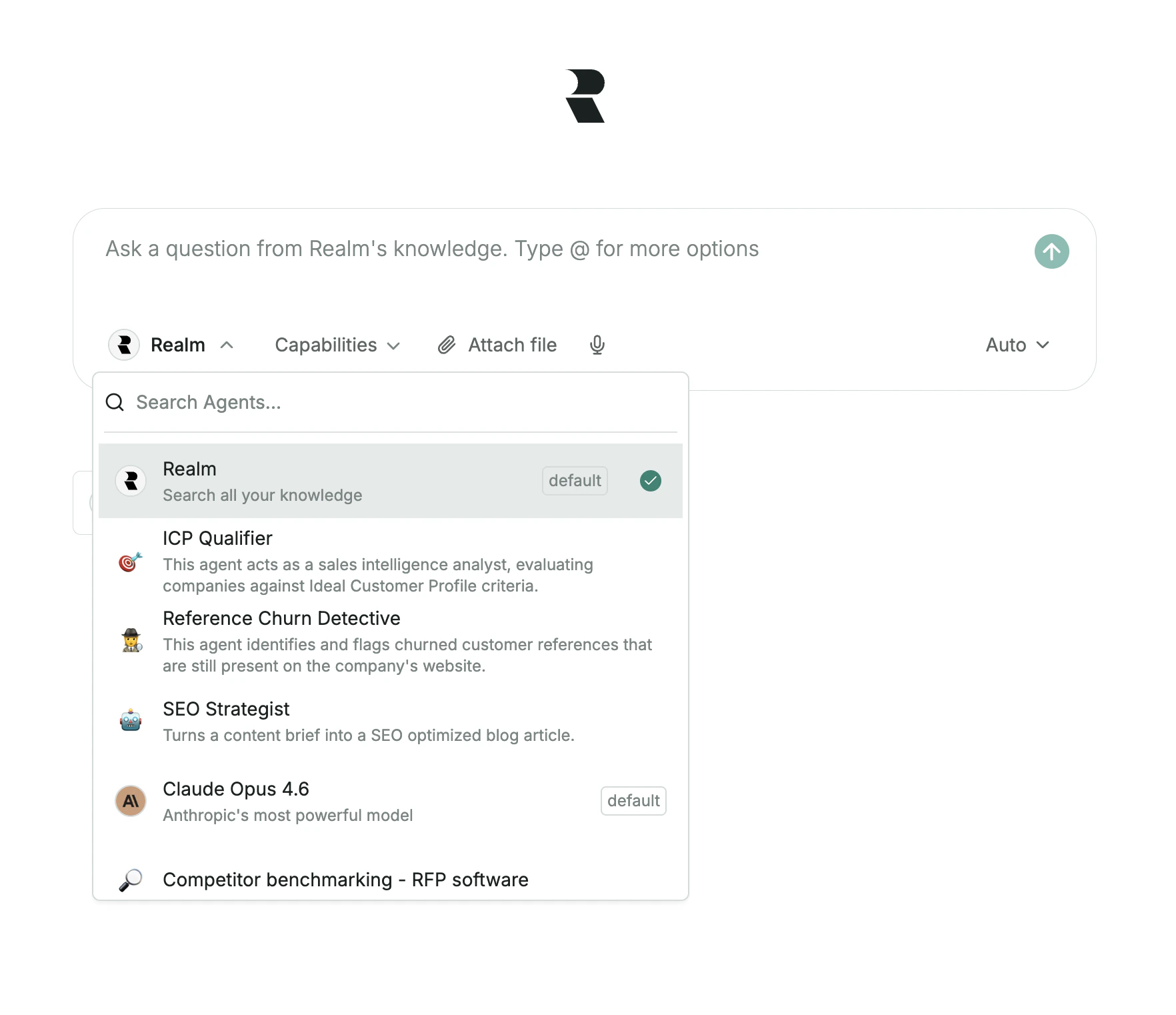 **Realm**: Realm is the default AI agent in the chat. It searches across your organization's connected knowledge and provides fast, accurate answers with citations.
**Agents**: Agents are specialized assistants designed for specific tasks or workflows. Each agent can be configured with its own instructions, knowledge sources, and tools. Use an agent when you want to automate repeatable work such as preparing for a sales call, summarizing a support ticket, or drafting a project plan. To use an agent in Chat, type `@` to open the list of available agents.
**LLMs**: LLMs are the underlying AI models (such as OpenAI GPT, Anthropic Claude, and Google Gemini series) that power reasoning and text generation. Use a standalone LLM for tasks that do not require your company's internal knowledge such as editing texts.
## Accuracy considerations
Chat can occasionally provide inaccurate or incomplete answers. This can happen due to:
* **Complex data retrieval**: Retrieving precise information from large, unstructured company knowledge can be challenging
* **Source quality**: If the underlying content is outdated, incomplete, or incorrect, Chat may reflect that
* **Prompt phrasing**: How you phrase your question can influence how well Chat understands what you're asking
* **Conflicting information**: When sources disagree, Chat may produce a confident but incorrect answer
We recommend verifying important responses. You can help us improve by rating replies with the thumbs up/down icons.
**Realm**: Realm is the default AI agent in the chat. It searches across your organization's connected knowledge and provides fast, accurate answers with citations.
**Agents**: Agents are specialized assistants designed for specific tasks or workflows. Each agent can be configured with its own instructions, knowledge sources, and tools. Use an agent when you want to automate repeatable work such as preparing for a sales call, summarizing a support ticket, or drafting a project plan. To use an agent in Chat, type `@` to open the list of available agents.
**LLMs**: LLMs are the underlying AI models (such as OpenAI GPT, Anthropic Claude, and Google Gemini series) that power reasoning and text generation. Use a standalone LLM for tasks that do not require your company's internal knowledge such as editing texts.
## Accuracy considerations
Chat can occasionally provide inaccurate or incomplete answers. This can happen due to:
* **Complex data retrieval**: Retrieving precise information from large, unstructured company knowledge can be challenging
* **Source quality**: If the underlying content is outdated, incomplete, or incorrect, Chat may reflect that
* **Prompt phrasing**: How you phrase your question can influence how well Chat understands what you're asking
* **Conflicting information**: When sources disagree, Chat may produce a confident but incorrect answer
We recommend verifying important responses. You can help us improve by rating replies with the thumbs up/down icons.