> ## Documentation Index
> Fetch the complete documentation index at: https://docs.withrealm.com/llms.txt
> Use this file to discover all available pages before exploring further.
# Browser extension
> Search and chat with your company knowledge from any webpage
## Overview
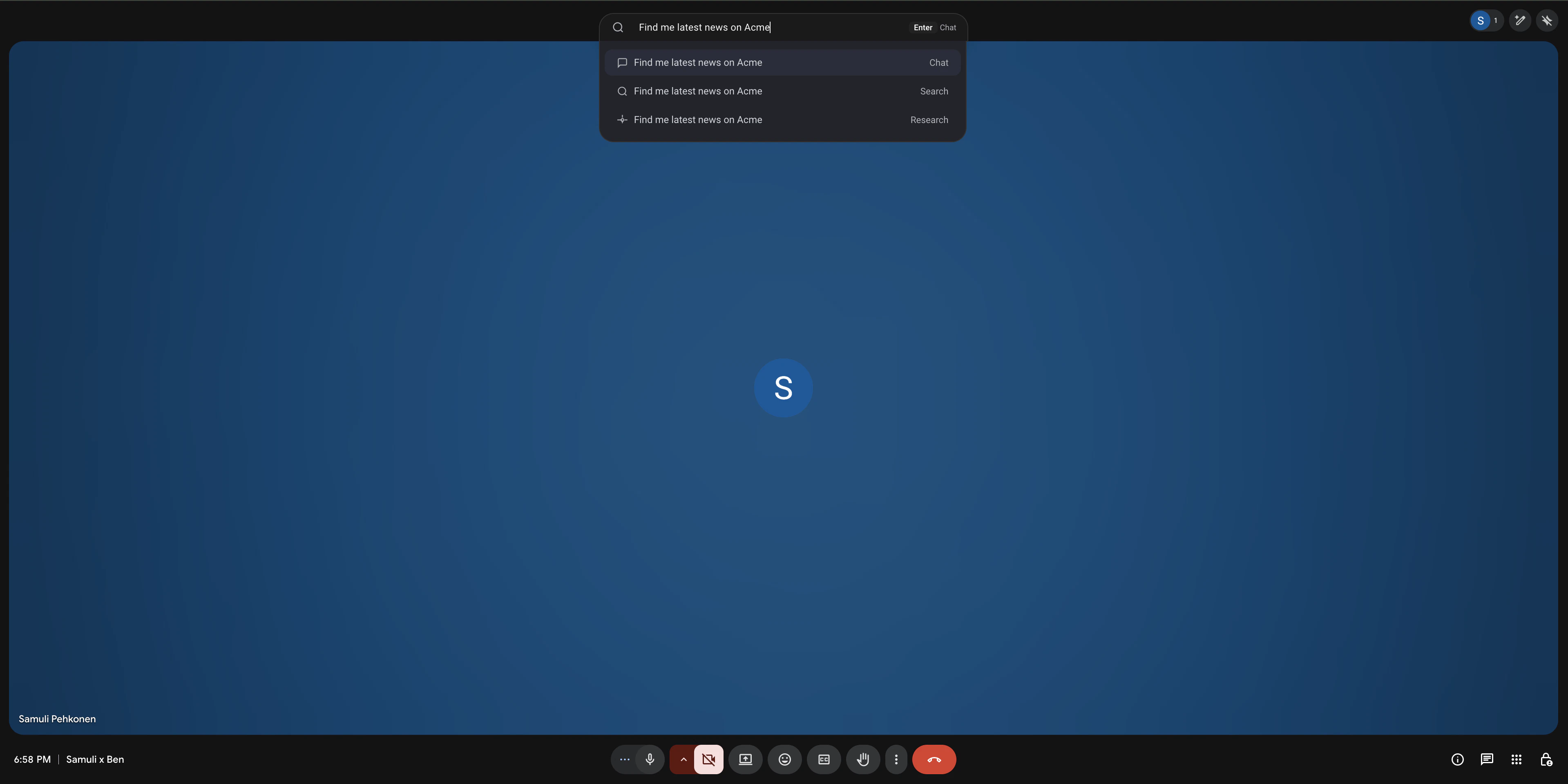 The Realm Browser Extension allows you to search and chat with your company knowledge from any webpage without disrupting your workflow. It works on Google Chrome, Microsoft Edge or any other Chromium-based browser.
## Installation
Install the Realm browser extension from the [Chrome Web Store](https://chromewebstore.google.com/detail/realm/fdgpaflidjgjnijjdopfjaicfjpllkic). After installing, pin it to your toolbar for easy access.
## How to use the extension
There are multiple ways to access the extension:
Press **Cmd+Shift+K** (Mac) or **Ctrl+Shift+K** (Windows) on any webpage.
Type **r** into your browser's address bar, press Tab or Space, and then type your query.
Click the Realm icon in your browser's extension menu to open the interface.
Select any text on a webpage, right-click, and choose "Search with Realm" or "Chat with Realm".
## Features
### Switch between Chat and Search
When you open the extension, you can choose between Chat and Search modes to find information in the way that works best for you.
### Set Realm as your new tab page
Configure Realm as your new tab page to give you quick access to the Realm Assistant and your custom Agents every time you open a new tab.
## Configuration and troubleshooting
Right-click the Realm extension icon, select Manage Extension, and then click Keyboard shortcuts.
Turn this on or off from the Preferences section in your Realm user settings.
The extension will not open as an overlay on internal browser pages (such as chrome://settings or edge://settings). On these pages, it will open Realm in a new tab instead.
Make sure you're logged into Realm in your browser. The extension uses your existing session.
After typing `r`, make sure to press Tab or Space before entering your query.
Pin the extension to your toolbar for quick access without using the keyboard shortcut.
The Realm Browser Extension allows you to search and chat with your company knowledge from any webpage without disrupting your workflow. It works on Google Chrome, Microsoft Edge or any other Chromium-based browser.
## Installation
Install the Realm browser extension from the [Chrome Web Store](https://chromewebstore.google.com/detail/realm/fdgpaflidjgjnijjdopfjaicfjpllkic). After installing, pin it to your toolbar for easy access.
## How to use the extension
There are multiple ways to access the extension:
Press **Cmd+Shift+K** (Mac) or **Ctrl+Shift+K** (Windows) on any webpage.
Type **r** into your browser's address bar, press Tab or Space, and then type your query.
Click the Realm icon in your browser's extension menu to open the interface.
Select any text on a webpage, right-click, and choose "Search with Realm" or "Chat with Realm".
## Features
### Switch between Chat and Search
When you open the extension, you can choose between Chat and Search modes to find information in the way that works best for you.
### Set Realm as your new tab page
Configure Realm as your new tab page to give you quick access to the Realm Assistant and your custom Agents every time you open a new tab.
## Configuration and troubleshooting
Right-click the Realm extension icon, select Manage Extension, and then click Keyboard shortcuts.
Turn this on or off from the Preferences section in your Realm user settings.
The extension will not open as an overlay on internal browser pages (such as chrome://settings or edge://settings). On these pages, it will open Realm in a new tab instead.
Make sure you're logged into Realm in your browser. The extension uses your existing session.
After typing `r`, make sure to press Tab or Space before entering your query.
Pin the extension to your toolbar for quick access without using the keyboard shortcut.