> ## Documentation Index
> Fetch the complete documentation index at: https://docs.withrealm.com/llms.txt
> Use this file to discover all available pages before exploring further.
# Slack app
> Get answers from your company's knowledge base directly in Slack
## Overview
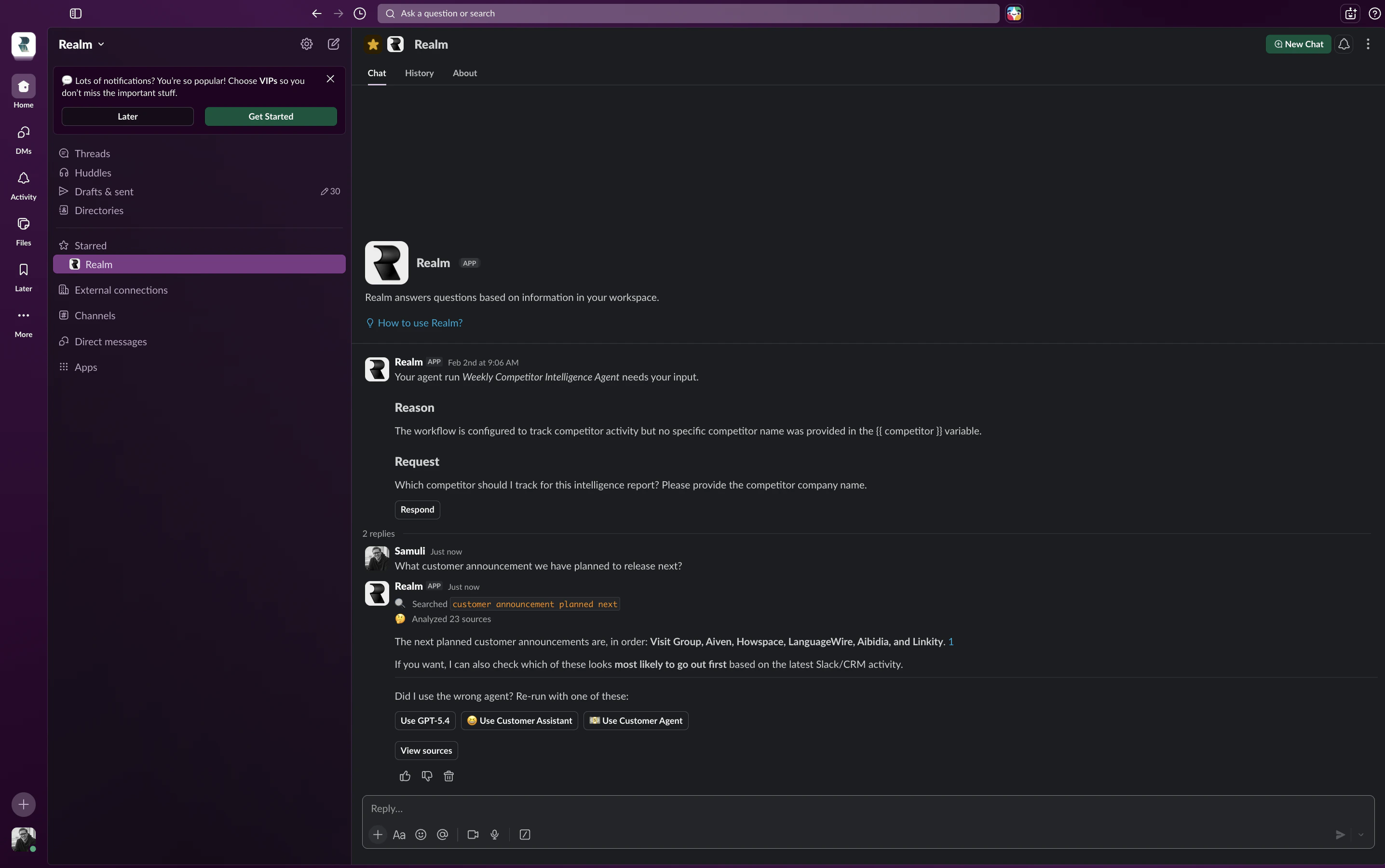 The Realm Slack App allows you to get answers from your company's knowledge base directly within Slack, just like sending a message to a colleague.
## Install without syncing Slack knowledge
Admins can install the Slack app without syncing Slack messages into Realm knowledge. This is useful when you want people to use Realm from Slack, but do not want Slack channels to become a searchable data source.
Go to **Settings** > **Data sources**, scroll to **Other integrations**, and click **Install** on **Slack App**.
To sync Slack messages as knowledge, connect Slack from the Slack data source page instead. For details, see [Admin guide: Slack data source](/admin/data-sources/slack).
## How to use Realm in Slack
In any public or private channel where the Realm app has been added, ask a question by mentioning @Realm followed by your query. Realm will reply in a thread.
Find the Realm app in the Apps section of your Slack sidebar. Open a DM with the Realm app and ask your question. Reply in the same thread to maintain context for follow-ups.
Interact with specific Realm Agents that have been added to Slack channels.
If your Slack admin has enabled it, you can access Realm directly from the sidebar in the bottom-right corner of Slack under "Apps".
If the Realm app is not visible in the Slack assistants sidebar, ask your admin to follow [Slack's instructions for displaying AI apps](https://slack.com/help/articles/33077521383059-Display-AI-apps-in-Slack).
## Best practices
Provide clear context to get the most accurate answers from Realm.
Reply in the same thread to maintain context for follow-up questions on the same topic.
Begin a fresh conversation when switching to an unrelated topic for better results.
Only users with an active Realm license can use the Realm Assistant in Slack. Adding the Realm app to your Slack workspace requires administrator permissions.
## Related pages
Configure Agents for Slack channels
Access Realm from your browser
The Realm Slack App allows you to get answers from your company's knowledge base directly within Slack, just like sending a message to a colleague.
## Install without syncing Slack knowledge
Admins can install the Slack app without syncing Slack messages into Realm knowledge. This is useful when you want people to use Realm from Slack, but do not want Slack channels to become a searchable data source.
Go to **Settings** > **Data sources**, scroll to **Other integrations**, and click **Install** on **Slack App**.
To sync Slack messages as knowledge, connect Slack from the Slack data source page instead. For details, see [Admin guide: Slack data source](/admin/data-sources/slack).
## How to use Realm in Slack
In any public or private channel where the Realm app has been added, ask a question by mentioning @Realm followed by your query. Realm will reply in a thread.
Find the Realm app in the Apps section of your Slack sidebar. Open a DM with the Realm app and ask your question. Reply in the same thread to maintain context for follow-ups.
Interact with specific Realm Agents that have been added to Slack channels.
If your Slack admin has enabled it, you can access Realm directly from the sidebar in the bottom-right corner of Slack under "Apps".
If the Realm app is not visible in the Slack assistants sidebar, ask your admin to follow [Slack's instructions for displaying AI apps](https://slack.com/help/articles/33077521383059-Display-AI-apps-in-Slack).
## Best practices
Provide clear context to get the most accurate answers from Realm.
Reply in the same thread to maintain context for follow-up questions on the same topic.
Begin a fresh conversation when switching to an unrelated topic for better results.
Only users with an active Realm license can use the Realm Assistant in Slack. Adding the Realm app to your Slack workspace requires administrator permissions.
## Related pages
Configure Agents for Slack channels
Access Realm from your browser