
Before you start
- Use Chrome with the Realm browser extension from the Chrome Web Store. The extension updates itself.
- Log in to Realm in the same Chrome. The extension uses your Realm session.
Bring the questions into Realm
1
Open the side panel
Open the portal questionnaire in Chrome. Click the Realm icon in the toolbar, or press Cmd+Shift+K (Ctrl+Shift+K on Windows). Select Fill in this questionnaire. The side panel opens on the right side of the browser. You can also find this option when you right-click the Realm icon.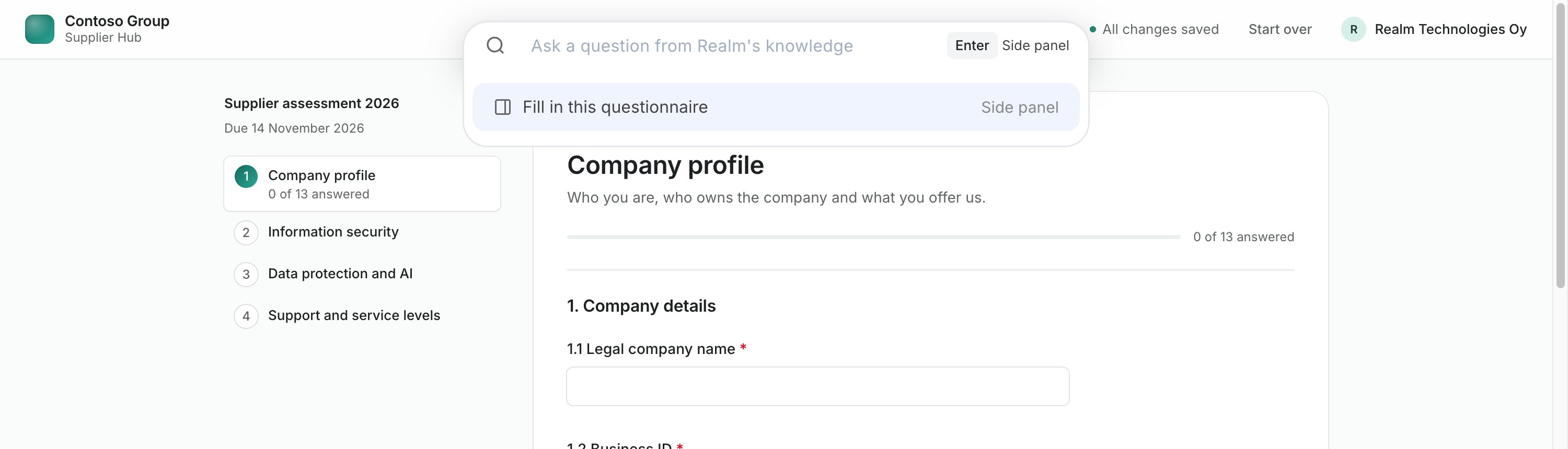
2
Allow access to the portal
The first time you use a portal, select Allow access. Realm reads the site only while the side panel is open. It fills in answers only when you ask it to.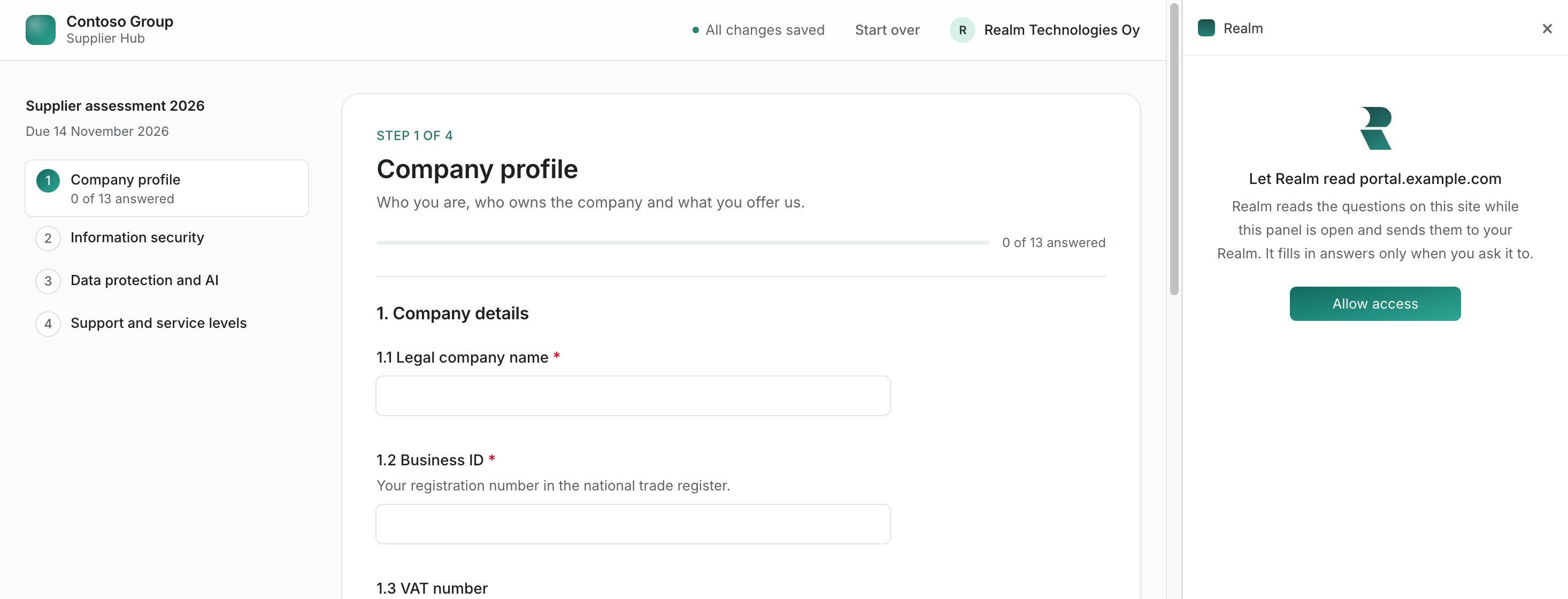
3
Check the questions
Realm reads the questions on the open page and shows them by section under Questions detected. Open a section to see its questions. Clear the checkbox of each section or question that you do not want in the RFP.If the questionnaire has many pages, select Read all pages. Realm goes through the pages and reads their questions. It does not submit the questionnaire or change answers. When it is done, the side panel shows how many pages it read and lists the questions of all pages.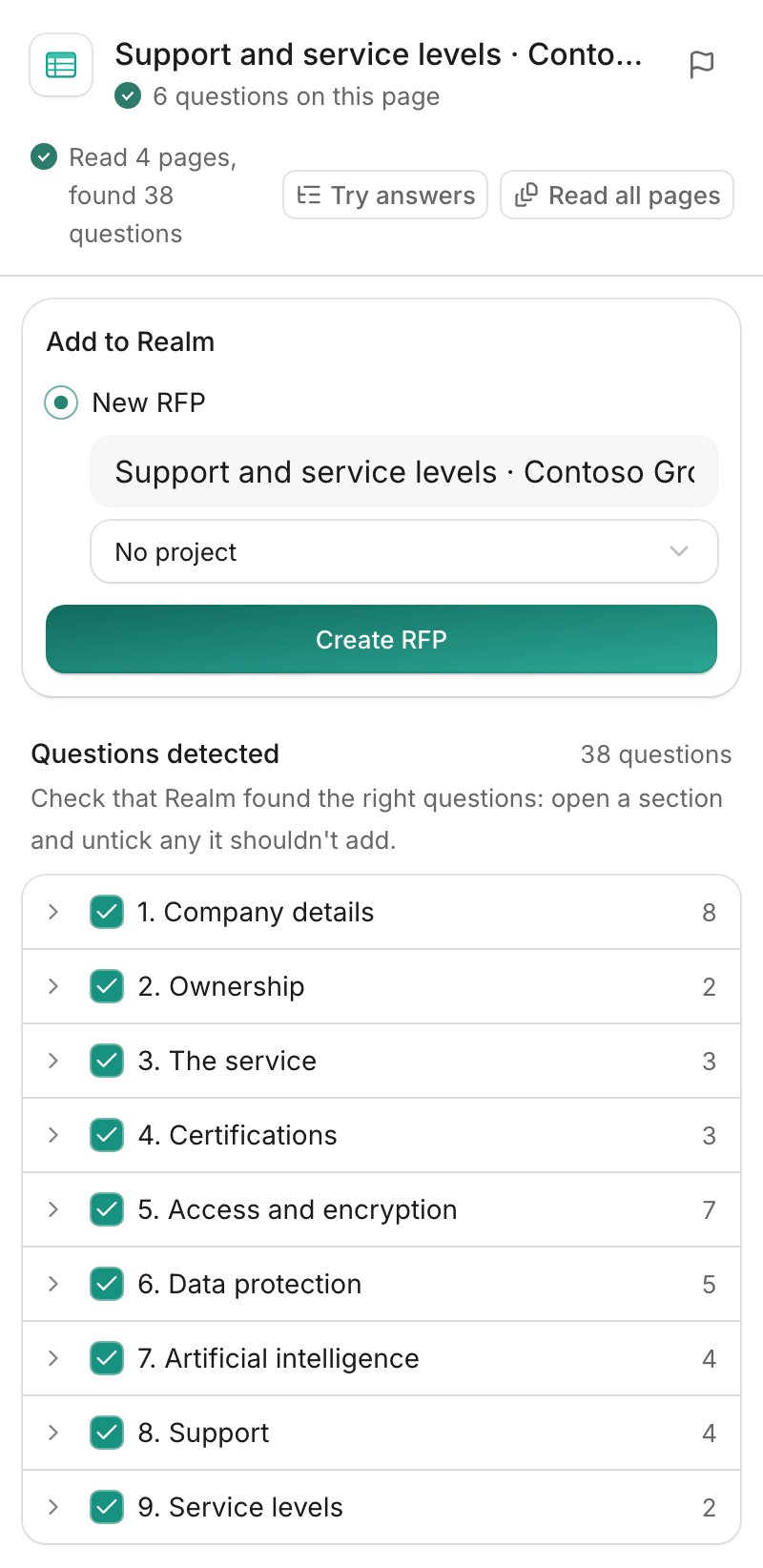
4
Create the RFP
Give the RFP a name. Select a project, or No project. Then select Create RFP. If you already made an RFP from this portal, you can add the questions to it. Select Existing RFP, select the RFP and then select Add to this RFP.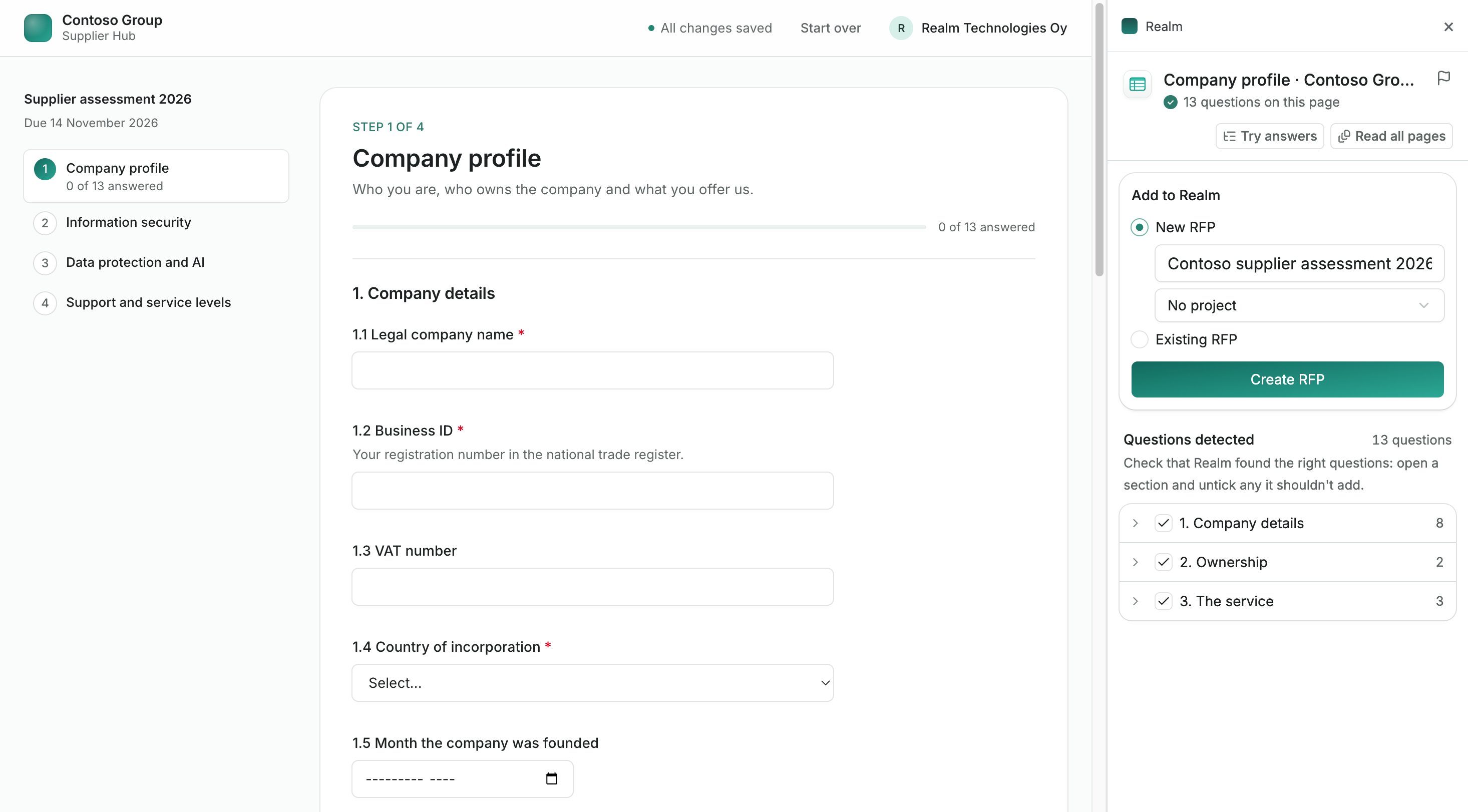
Answer in Realm
- Select the Open in Realm icon in the side panel. The RFP opens in Realm.
- Generate and check the answers as you do in other RFPs. See Filling RFPs. If a question asks for a file, add the file to the answer as an attachment.
- Set the finished answers to Approved.
Fill the answers into the portal
1
Go back to the portal
Go back to the portal page and open the side panel. The side panel shows how many answers are ready to fill on the page.To fill only the answers that you approved, select Only fill approved answers.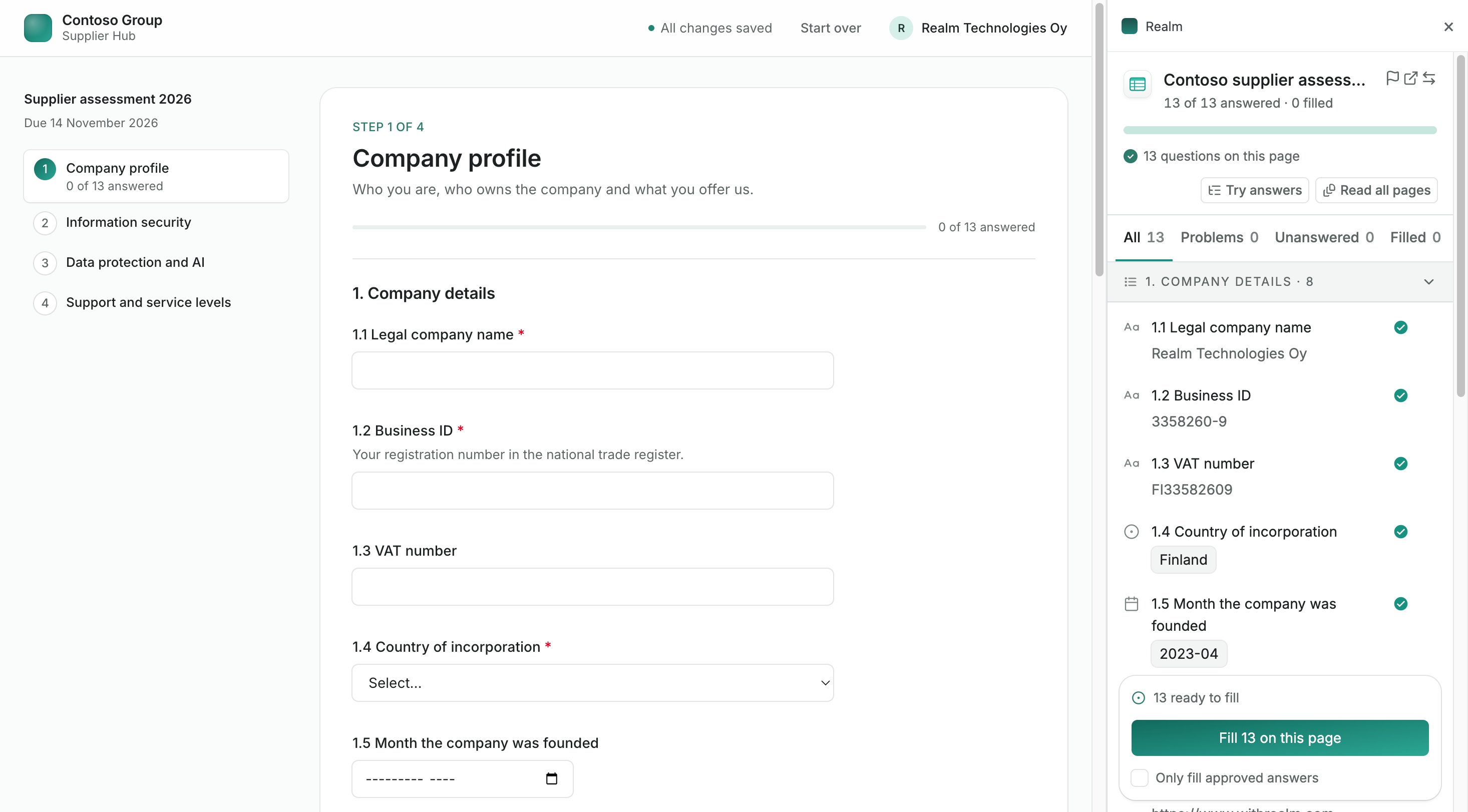
2
Fill the page
Select Fill N on this page to fill the open page. Realm puts a border around each field that it filled. Undo reverses the last fill on the page.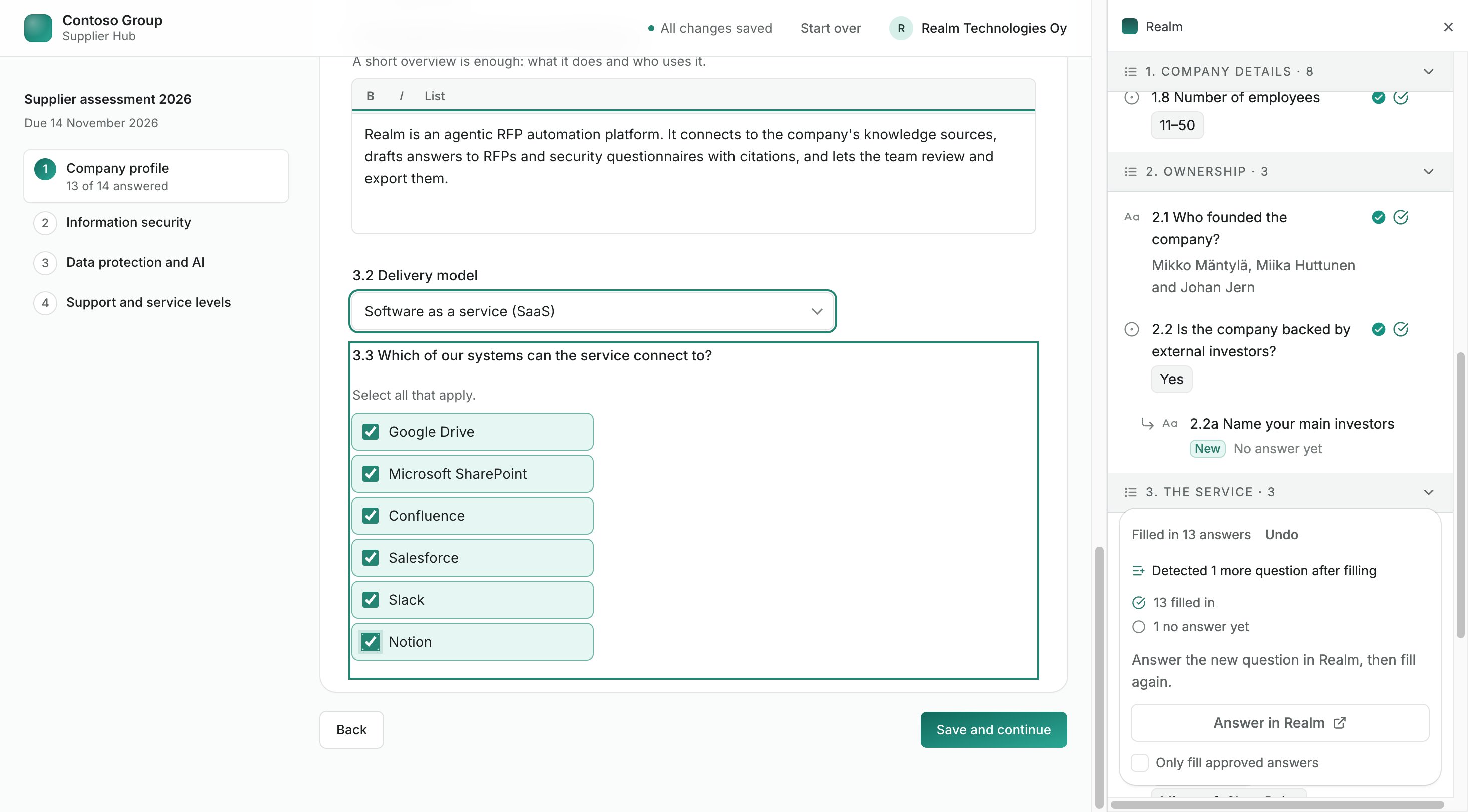
3
Submit in the portal
Check the pages and submit the questionnaire in the portal yourself. Realm never submits the questionnaire.
Good to know
- Realm does not change a field that already has an answer in the portal. To write Realm’s answers over those fields, select Replace.
- If a field does not accept an answer, for example because the answer is too long, the side panel shows it. Correct the answer in Realm and fill the page again.
- If a fill makes new follow-up questions visible, Realm adds them to the RFP. Answer them in Realm, then fill the page again.
If something does not work
The side panel asks you to log in
The side panel asks you to log in
Log in to Realm in another tab. Then go back to the side panel.
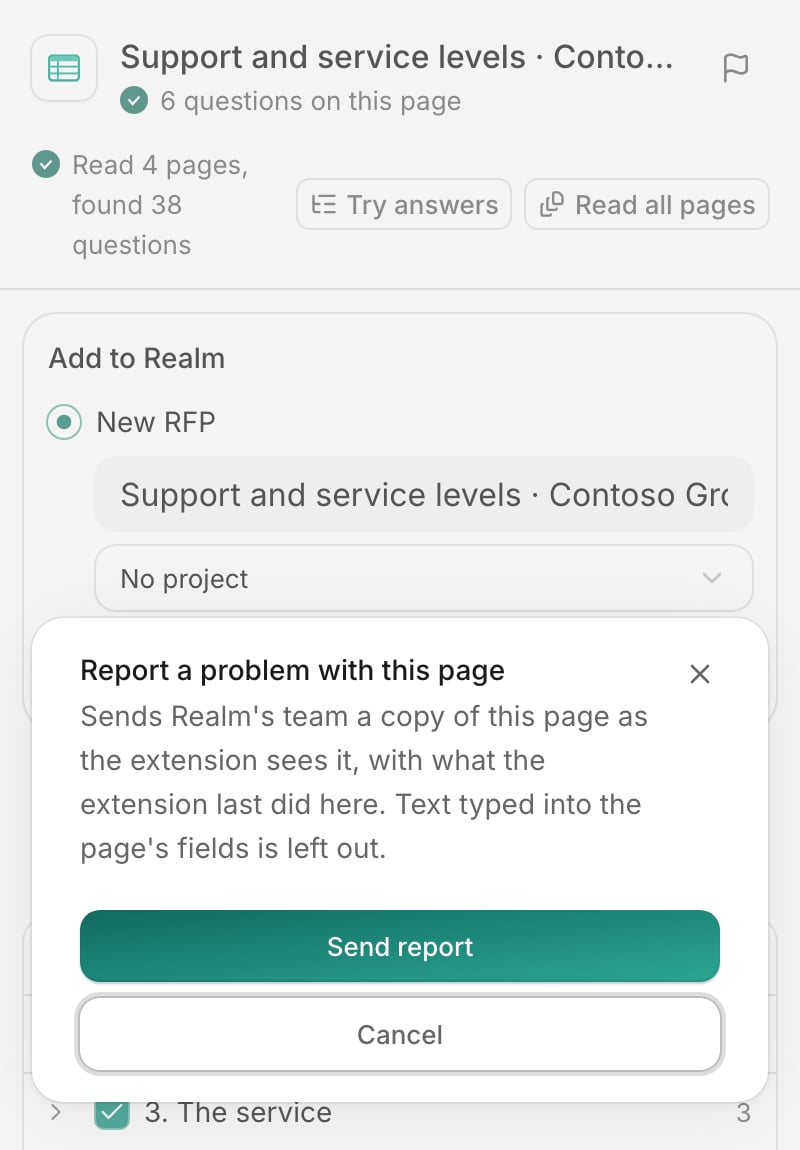
Realm misses questions or fills a field incorrectly
Realm misses questions or fills a field incorrectly
Select the Report a problem with this page icon at the top of the side panel, then select Send report. The Realm team gets a copy of the page as the extension sees it, with what the extension last did on the page. The report does not include the text that is typed into the page’s fields.